UnitusTI Update Version 7.19

UNITUSTI UPDATE VERSION 7.19 (MARIA EDITION)


HERE ARE THE LATEST AND GREATEST ADDITIONS TO UNITUSTI


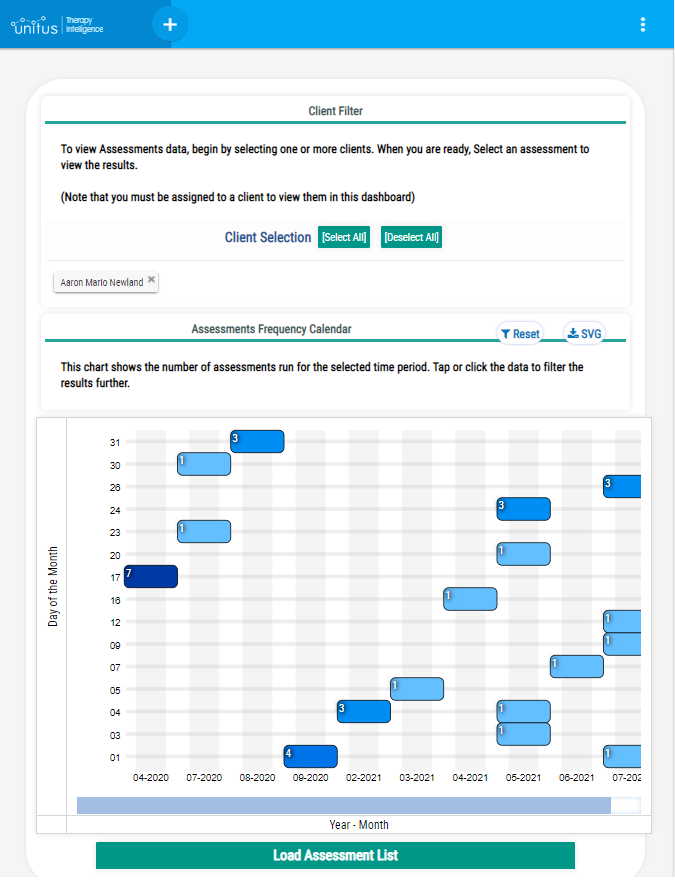
Improved Scoring for Assessments

Before publishing your assessment so that it can be assigned and run with your clients, you have the option to choose a scoring model to obtain results that can be explored in the Assessment Dashboards, for example to monitor progress over time for a single client or compare the results of a group of clients. We have updated the scoring models, simplifying the conditions required to run them and adding support for combinations of scoring per group and per category in all the models.
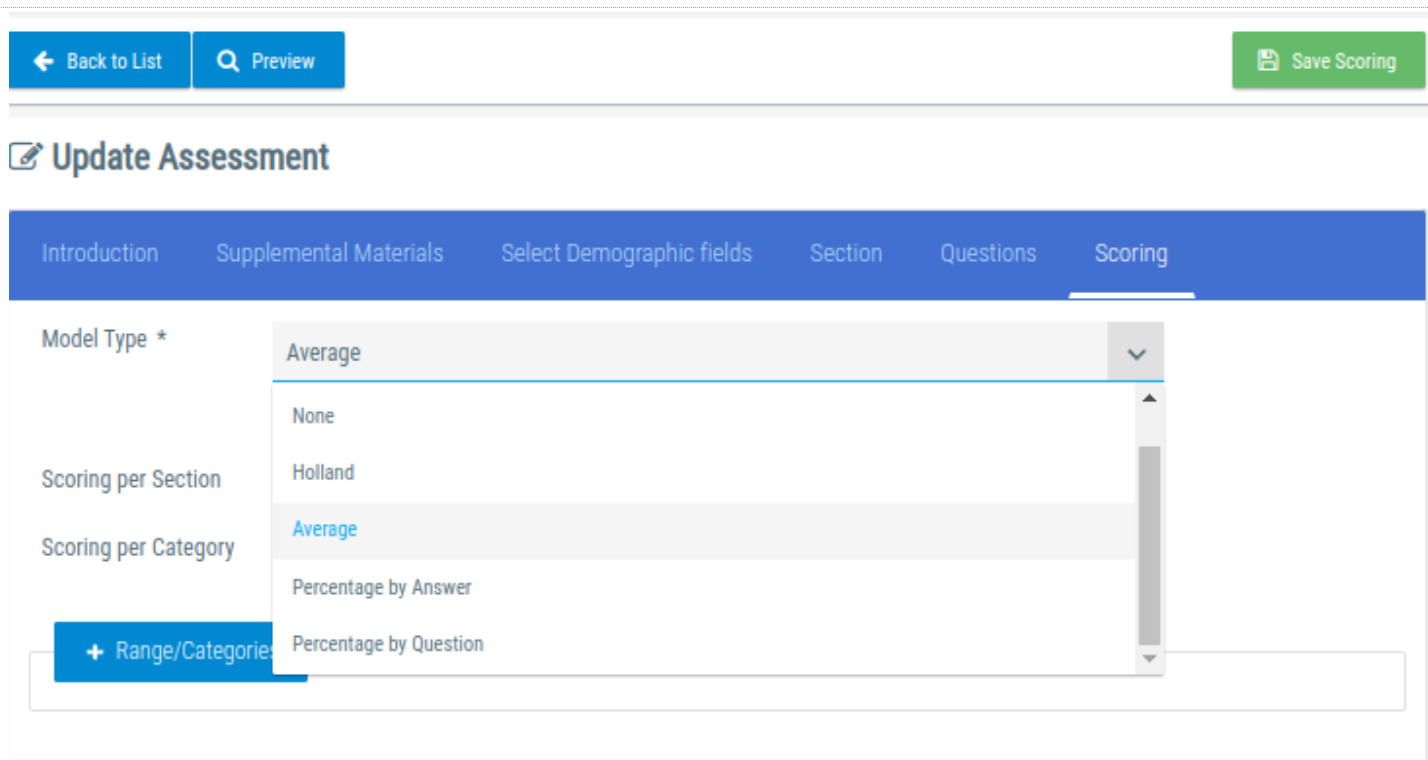
What Scoring Model to use?

Learn about the different scoring models with examples to help you to decide which one best fits your needs.


Zones has new features

The Zones feature in UnitusTI offers the ability to label your users and clients as different groups to better represent the layout of your organization, for example as a therapy center with multiple facilities or a school district with multiple classrooms or school sites.

Zones can be managed from the Center menu area in the Zones tab.
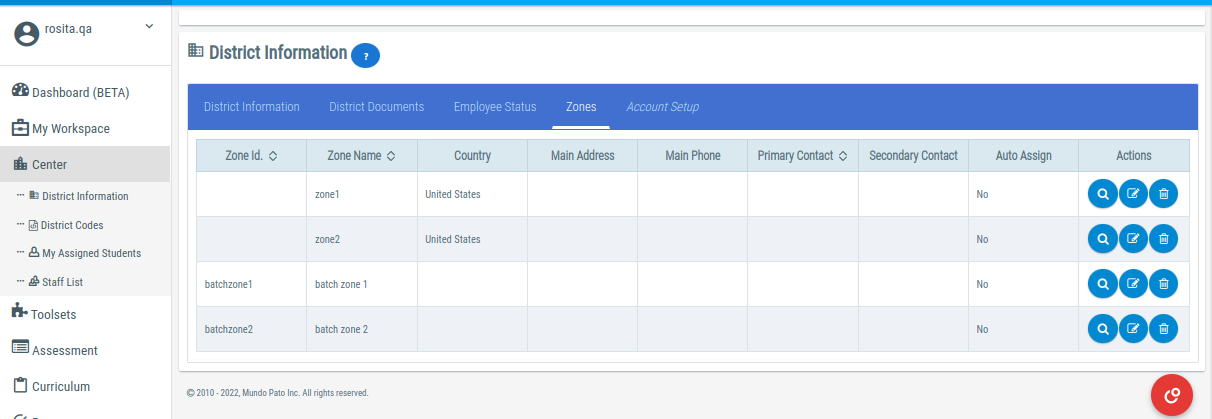
Learn to manage your zones

Explore the visibility rules that are applied to users and clients when they are moved between zones.


Have questions or issues to report? Our friendly Support team is standing by! Use the support ticket feature in UnitusTI or the blue “Support” button at the bottom of this page.
Technical Liaison
UnitusTI Update version 7.17


UNITUSTI UPDATE VERSION 7.17 (MARIA EDITION)

HERE ARE THE LATEST AND GREATEST ADDITIONS TO UNITUSTI


Customize Assessments with HTML Code Blocks

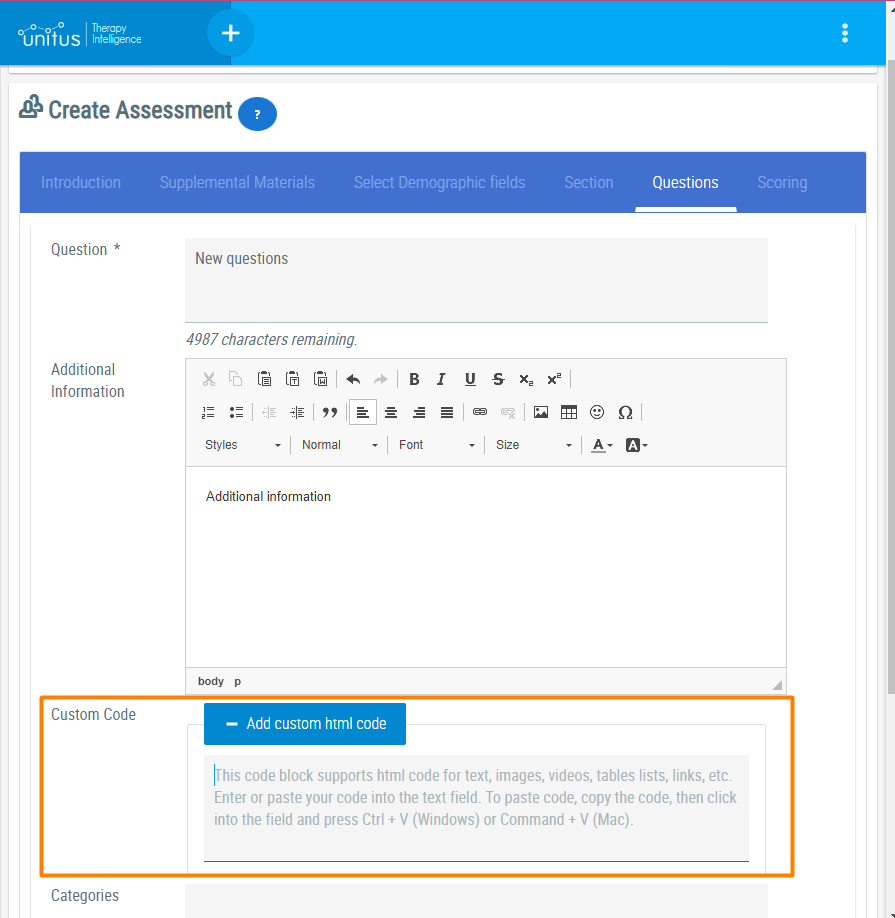
Custom Code Block in Assessments

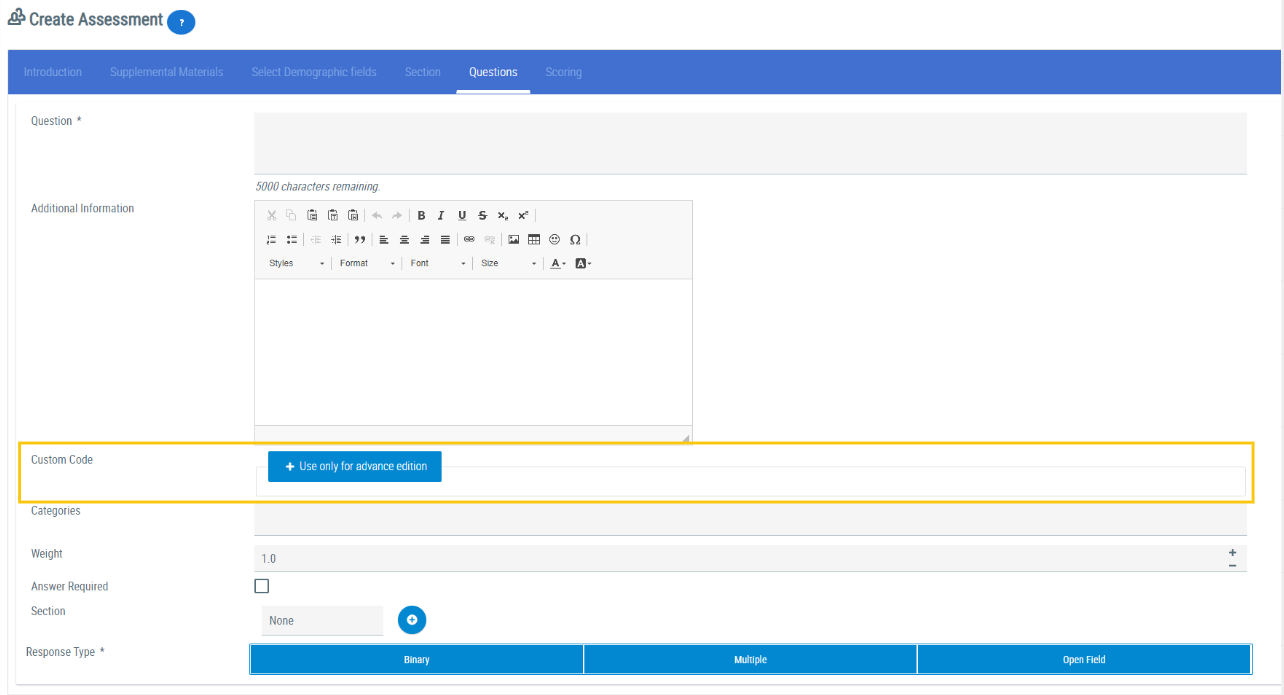
When creating questions for your assessments in the Assessment List, you’ll find a new field called Custom Code. This custom code block lets you embed content using HTML code, to create formatted text, tables, links, videos, pictures and audio files in your assessment questions beyond what is available in the Additional Information field.

While writing these interactions from scratch is possible, it demands basic knowledge of Javascript and HTML. More instruction is available for developers in the Mundo Pato developers guide.


Embed Virtual Material Activities in your Assessments

Get preset code to use in an Assessment Custom Code block by visiting the Virtual Materials Toolset

(Menu area: Toolsets/Virtual Materials)

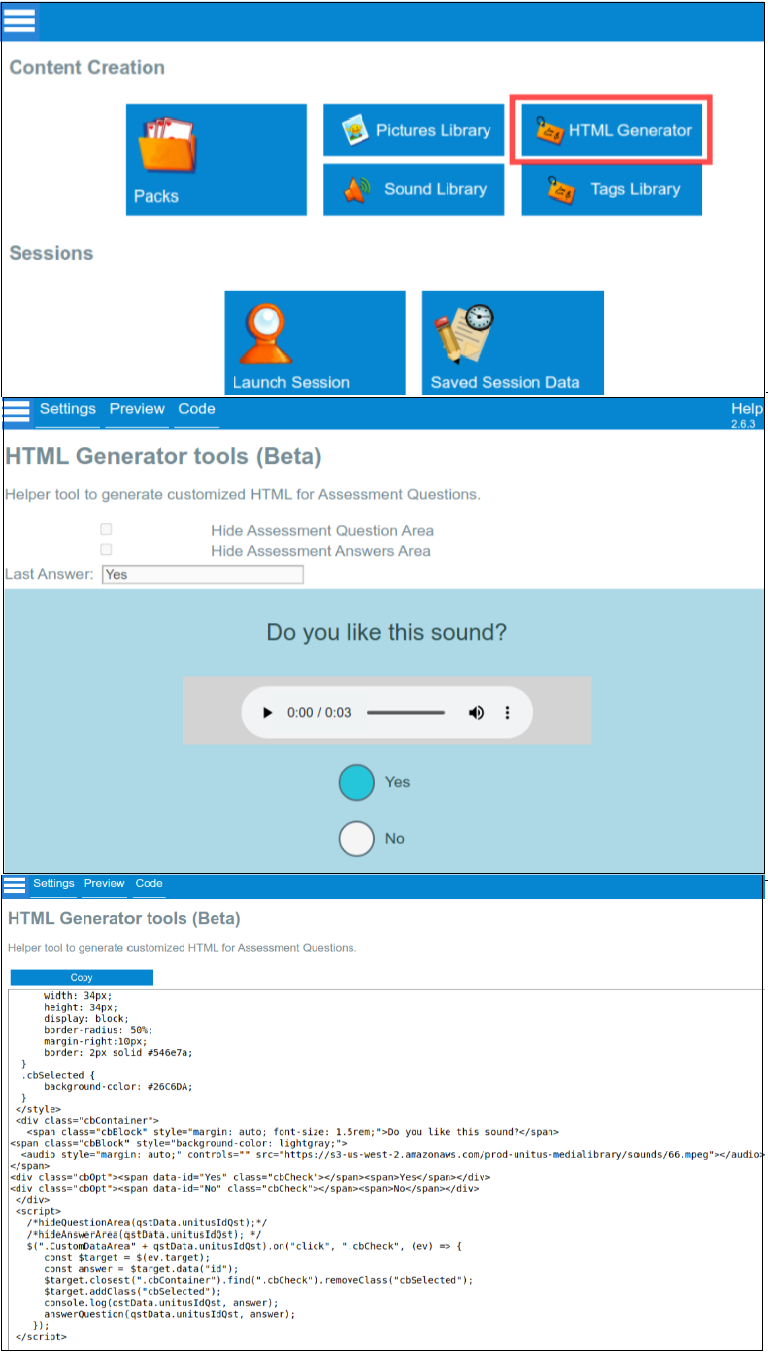
For non-technical users (and for developers that want to play with examples) hop on over to the Virtual Materials Toolset to grab some code from predefined templates in the HTML Generator tool. Copy it and then head back to your assessment question editing page to paste it into the Custom Code block.

Add activities to your assessments using the HTML Generator tool:

Create HTML code using the HTML generator in the Virtual Materials Toolset (menu: Toolsets / Virtual Materials / Manage Toolsets). The HTML Generator includes predefined templates that can be quickly generated by choosing a layout for your activity and defining some parameters. Once the code is generated, copy it and head back over to your assessment question creation screen (Assessment / Assessment List / edit your draft assessment / Questions tab) and paste the generated code into your Custom Code section (see above instructions in “Custom code field in Assessments”).

Steps:

Navigate to Toolsets in the main menu.

Select the Virtual Materials toolset

Select the HTML Generator button

Once you enter the Settings Screen, you will be presented with a list of Layouts. Each Layout will request a different number of parameters, depending on the design. The layouts available are:

1. Question with audio and yes/no options

2. List of audios with checkboxes

3. Simple Youtube video

4. Simple video

5. Videos with multiple options

6. List of options in a row

Click on View Documentation below for a full walkthrough

View Documentation

Add audio files to your assessments from the Virtual Materials Audio Library:

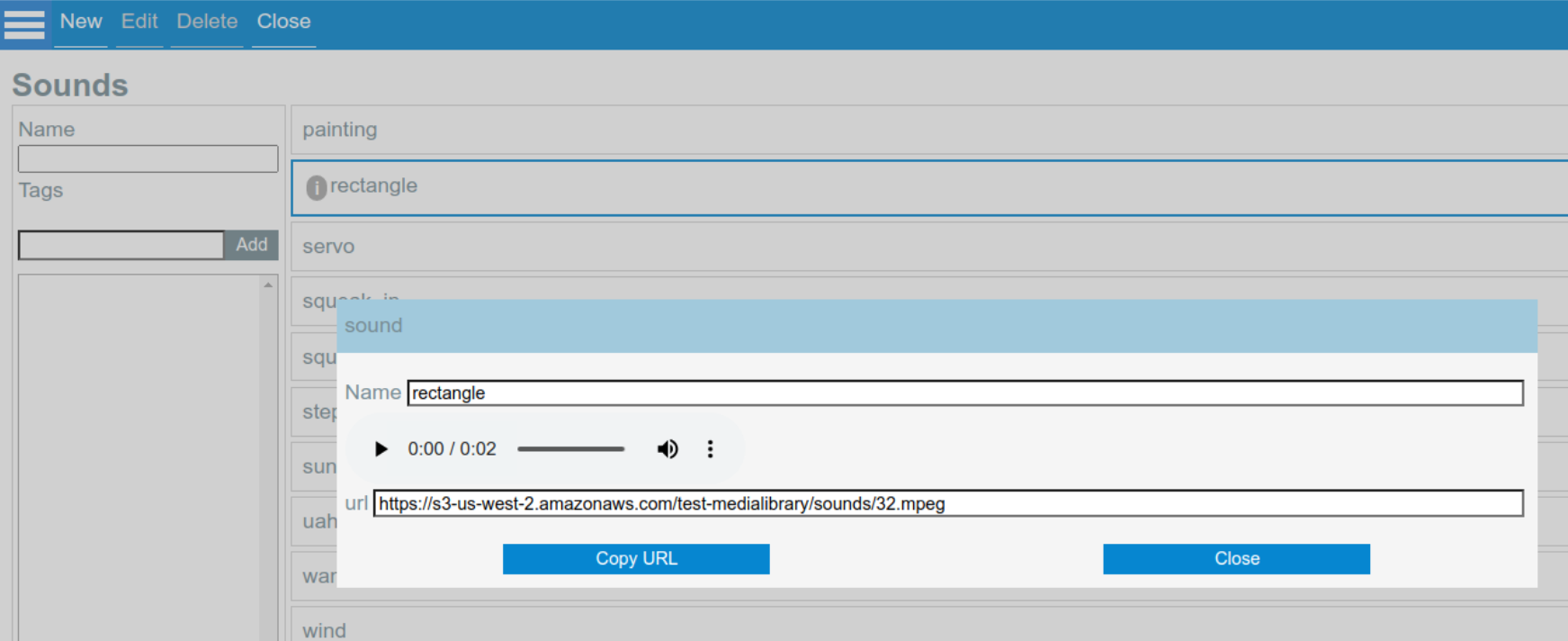
The Virtual Materials Toolset includes an Audio Library section where you can upload audio files to use in your virtual materials. You can also use these audio files in the Custom Code block in your assessment questions.

After you upload your audio files in the Sounds area of the Virtual Materials toolset, click on the information icon. In the popup, select the “Copy URL” button, then head over to your assessment question and paste it into the Custom Code field. See more details by clicking the Developers Documentation button below.

Developers Documentation

Add pictures to your assessments from the Virtual Materials Toolset in the custom HTML code

You can use the pictures stored in the Picture Library in your assessment Custom Code blocks. Copy the picture’s URL address by selecting the “information” icon and use the “Copy URL” button, then paste it into the Custom Code block in your assessment question.

Add Virtual Materials activities to your assessments using the HTML Generator tool:

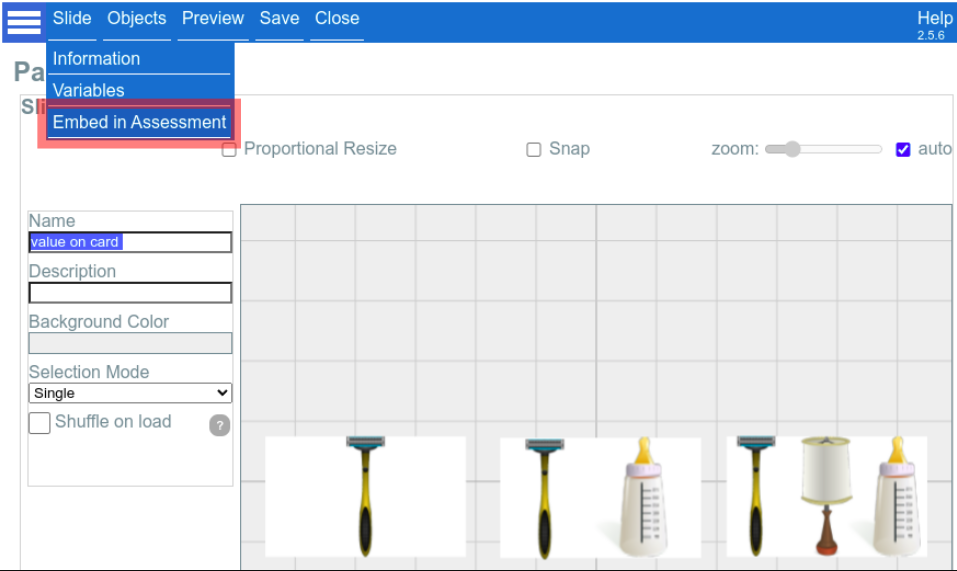
Slides in Virtual Materials can be integrated directly into an assessment, so the selected slide will be loaded in the area right between the question and the answer.

Click on View Documentation below for a full walkthrough

View Documentation


Have questions or issues to report? Our friendly Support team is standing by! Use the support ticket feature in UnitusTI or the blue “Support” button at the bottom of this page.

UnitusTI Update Version 7.15


UNITUSTI UPDATE VERSION 7.15 (MARIA EDITION)

HERE ARE THE LATEST AND GREATEST ADDITIONS TO UNITUSTI


Language Update in UnitusTI

Use UnitusTI in English or Spanish! With the new language selector, Administrators can define the language setting for the entire account, or users can set the language just for their own view.

Change the language for your whole organization:

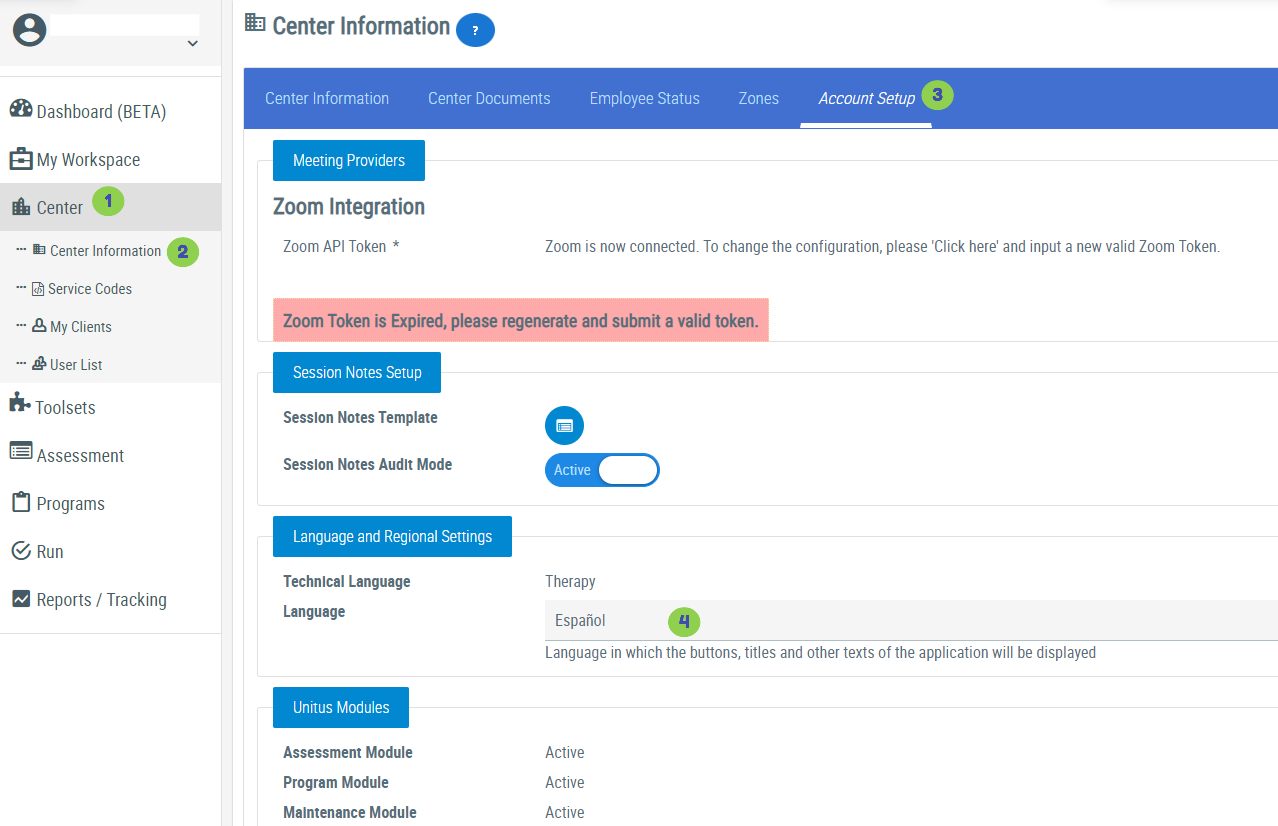
Users with the Administrator security role can update the language setting for the entire organization in the Account Setup tab found in Center Information. Follow the steps in the screenshot to the left. After changing this setting, refresh the webpage to see the changes. All users are affected.

Change language for an individual user:

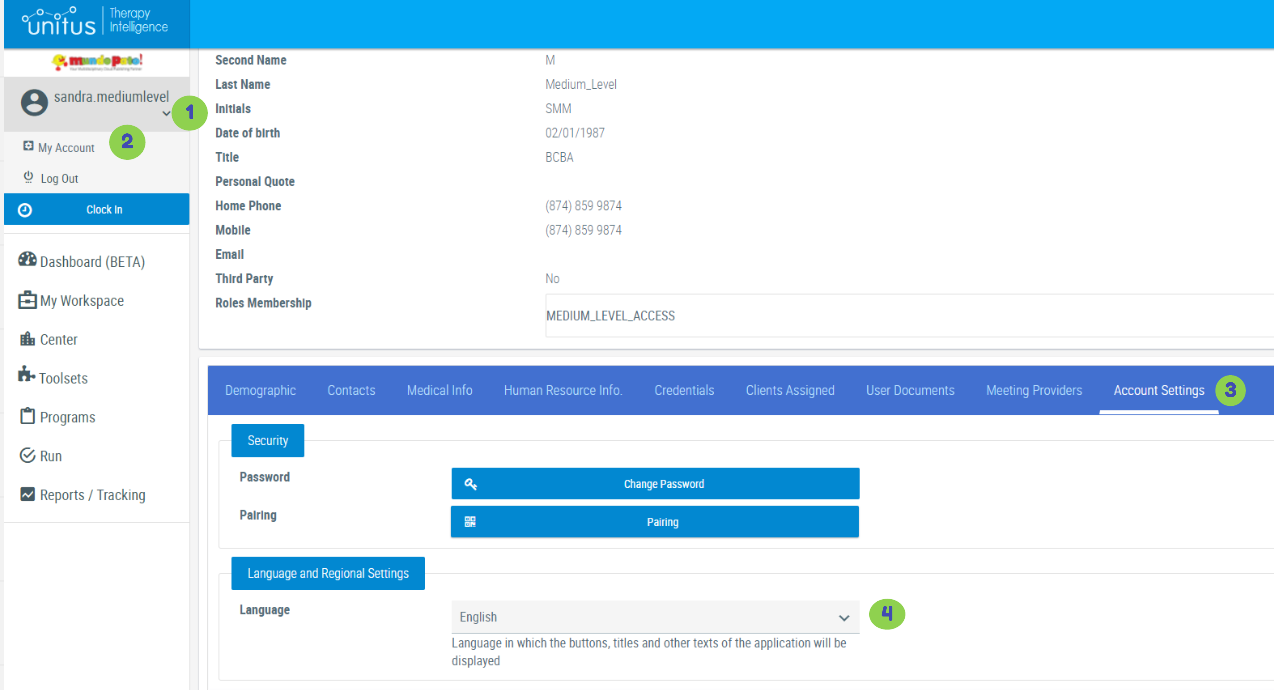
Users can define their own language preference in My Account. Follow the steps in the screenshot to the left. After changing this setting, refresh the webpage to see the changes. Only the user making this change is affected.


Change Password Button Has Been Moved

The “Change Password” button has been moved in “My Accounts” to a new tab at the bottom of this area. Select your username in the top right corner of UnitusTI, select My Account, then search for the option “Account Settings” in the tabs at the bottom of this page. The button was formerly located in the top of this page.


New optional fields in Session Notes

Users that use service codes in session notes, can include additional information about each service code provided, like the travel type, if the client was present, which caregivers were present, and who was the caregiver responsible.

Select the “Additional Data” button when adding the service code to view the options available for your organization. This information is exported together with the Session Notes reports.


New Field in Assessments Questions

Add HTML code to your assessment questions:

The new “Custom Code” field supports HTML code for adding text, images, videos, tables, lists, links, etc. Enter or paste your code into the text field. You can view the compiled code in the preview of the assessment and during the assessment execution.


New Data result Option for Programs using Task Analysis

Programs configured with the Task Analysis data acquisition type will now see a new Data Result option in their data sheet. The minus option has been added to allow users to record a target not achieved (and no prompt was used). Prompted results can still be recorded using the configured prompt buttons. See screenshot below


Scoring for Assessments

Creating an assessment and looking for some help with the types of scoring available?

UnitusTI has a variety of scoring types to help you track a range of psychometrics, simple to complex, for your assessments. Click here to view a new help article about choosing a scoring type for the assessment you’ve created.


Have questions or issues to report? Our friendly Support team is standing by! Use the support ticket feature in UnitusTI or the blue “Support” button at the bottom of this page.

UnitusTI Update Version 7.13

UNITUSTI UPDATE VERSION 7.13 (MARIA EDITION)

HERE ARE THE LATEST AND GREATEST ADDITIONS TO UNITUSTI!


New Reports are Available!

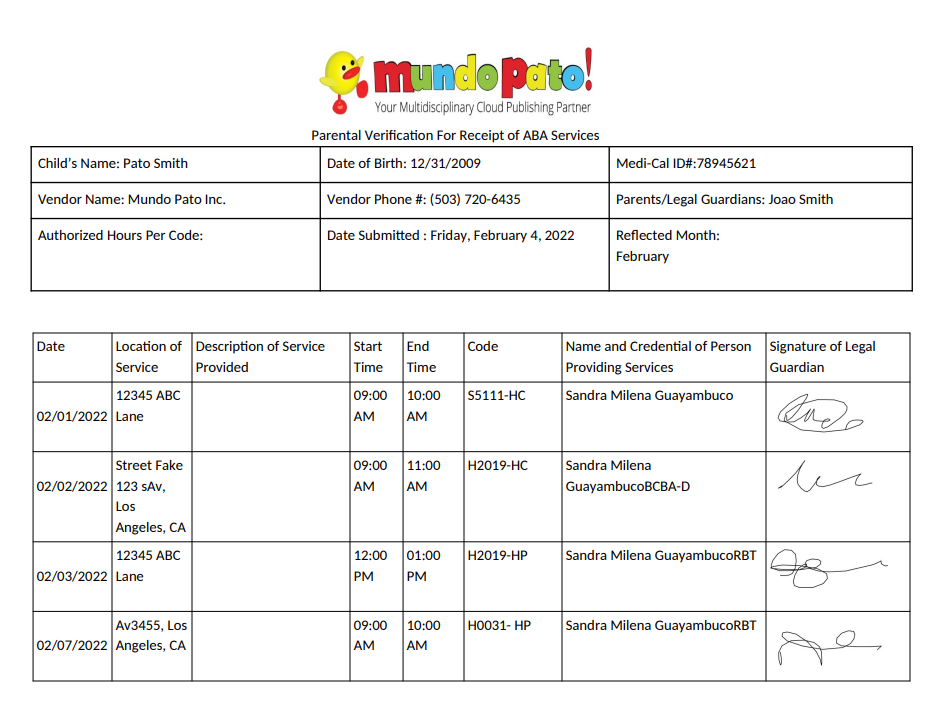
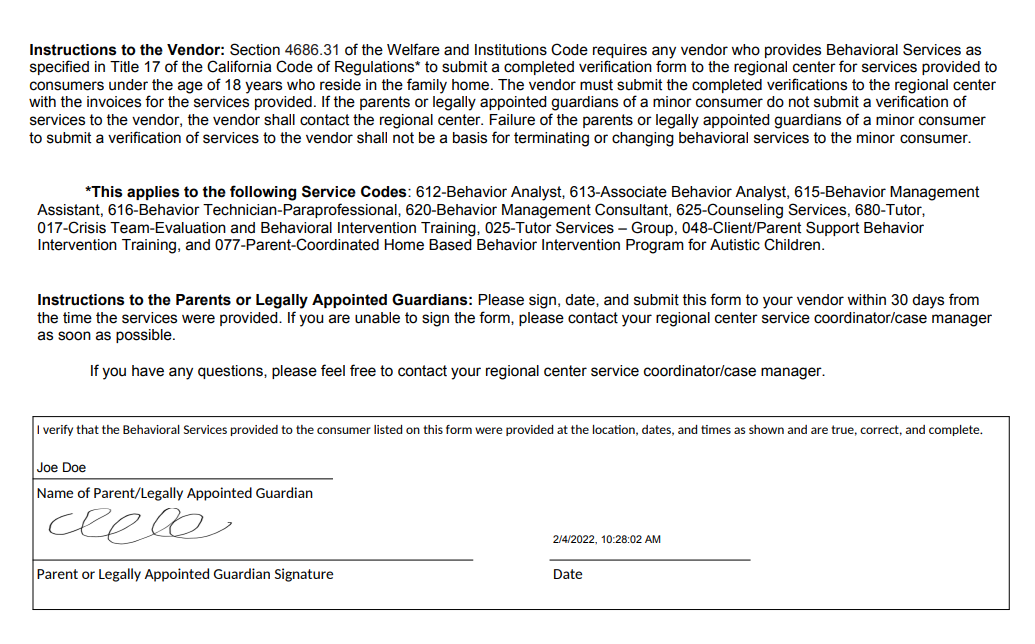
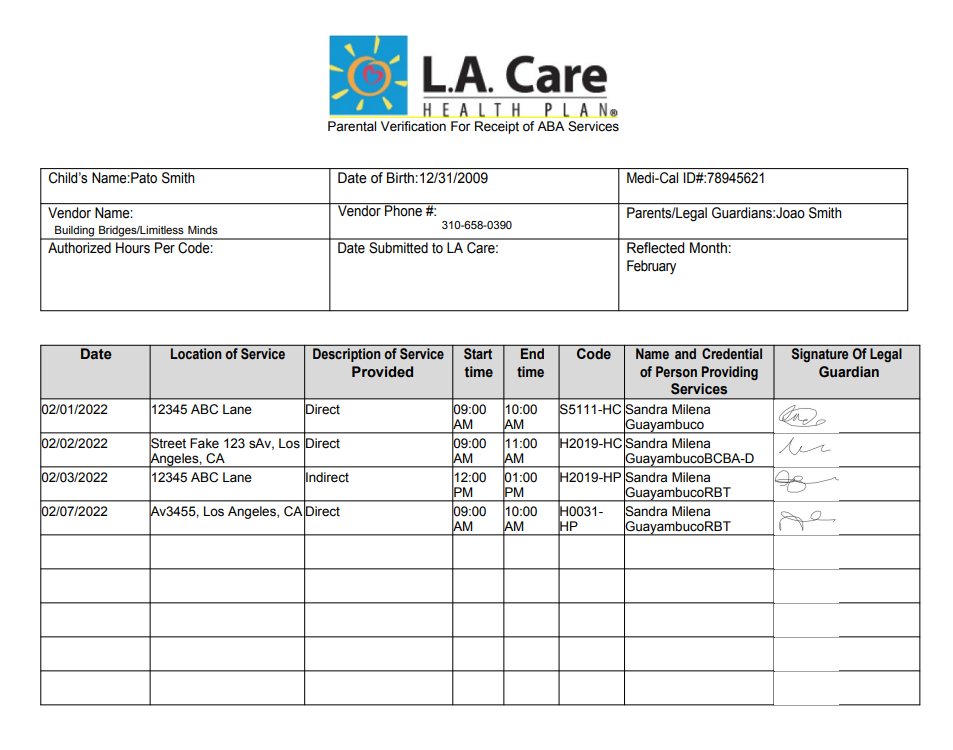
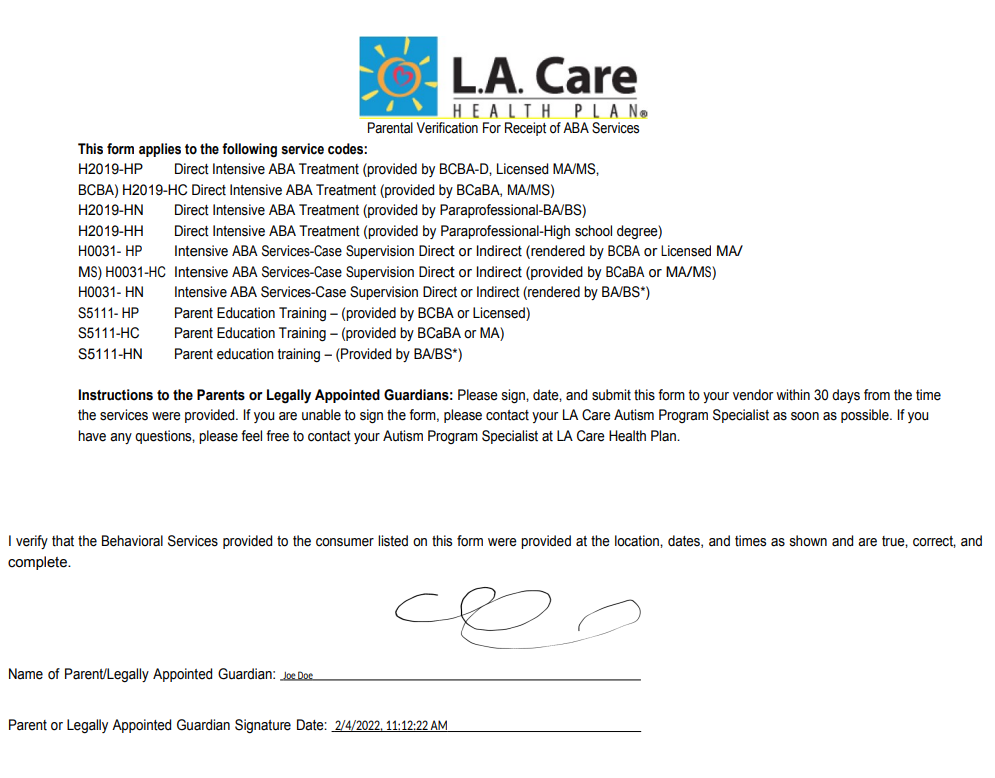
Parent Verification, WRC and LACARE forms

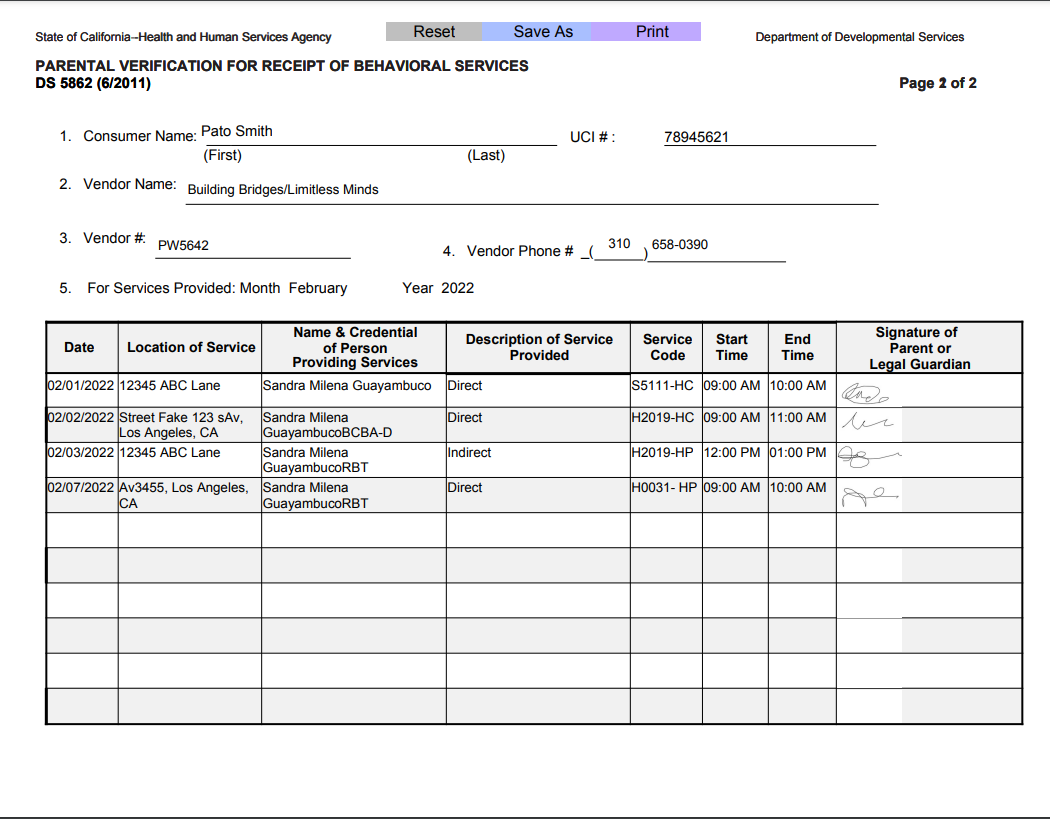
These reports include the following service code information recorded in the session notes for the parental verification for receipt of behavioral services. Click here to view the data sources of these reports

  • Date

  • Location of Service

  • Full name and Credentials of the person providing the Service

  • Description of Service Provided

  • Start and End Time

  • Signature of Parent or Legal Guardian

Watch the video below to see how to export these reports:


Progress Report for Treatment Plans

The advantage of utilizing an electronic data record like UnitusTI to centralize client information becomes evident when detailed reports that include data from different domains of a client are requested.

The Progress Report offers a comprehensive view of a particular client, combining client progress, program implementation, session tracking, client and user attendance, medical and payment details, and more.

Click here to view the documentation

Click here to Download a sample of the Progress Report

Agency Contact User

If your reporting needs to include the contact information of a staff member responsible for client billing, UnitusTI allows you to designate one or more users as an "Agency Contact". An organization can have multiple Agency Contacts and any user with any security role may be assigned this designation. Users named as an agency contact will be included in the Progress Report for a client's treatment plans (note that the user must also be assigned to a given client in order to be displayed in their report). Click here to view the documentation of the Progress Report

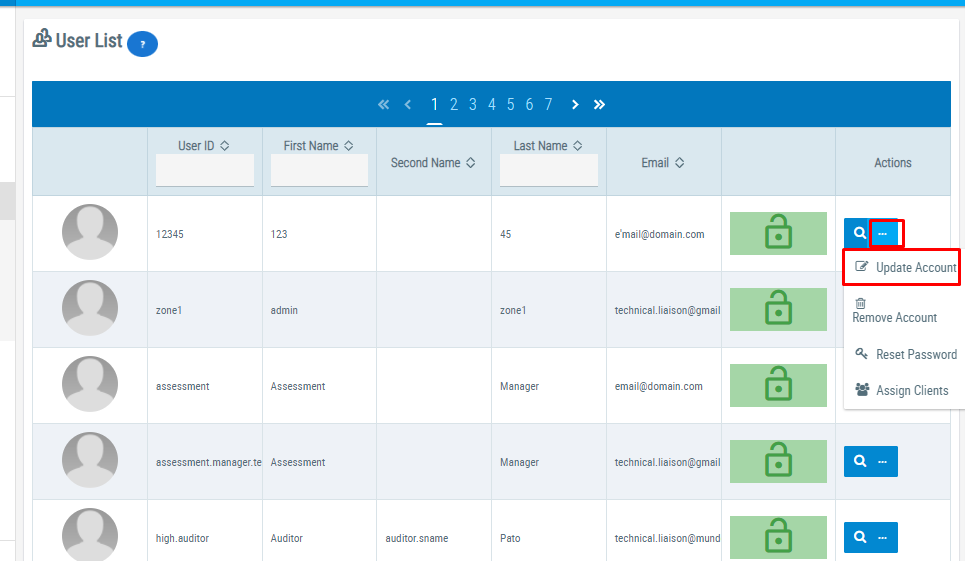
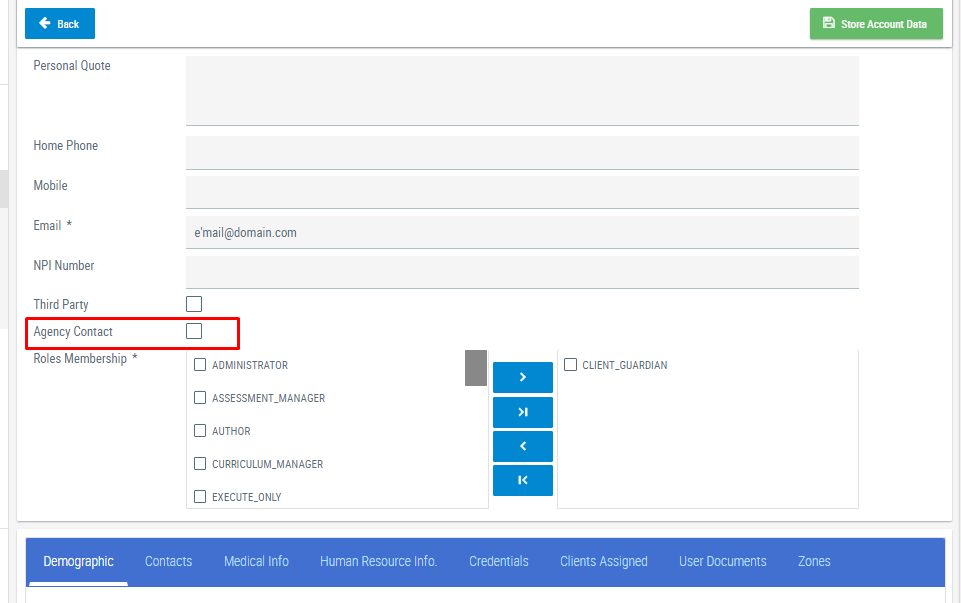
To designate a user as an agency contact, check the "Agency Contact" box in their user profile using the following steps:

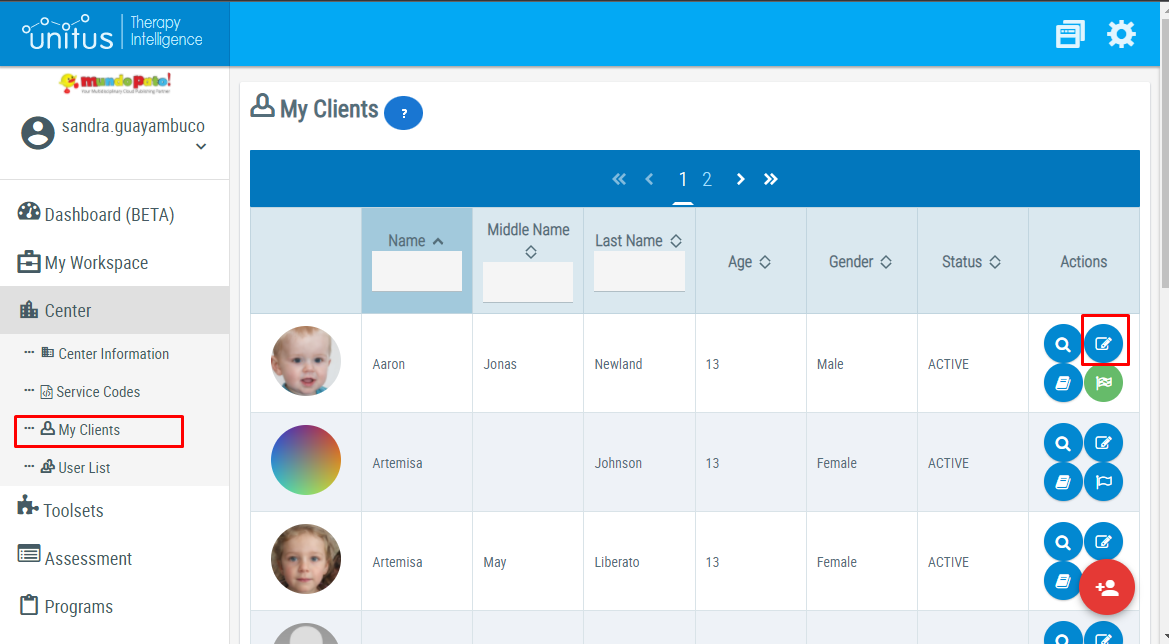
  1. Navigate to Center in the main menu (see screenshot below)

  2. Select User List

  3. Locate the user you wish to update

  4. Select the three dots button under the actions column for the user and choose Update Account

  5. Scroll down until you see the Agency Contact checkbox and select it (see screenshot)


Client Case Manager

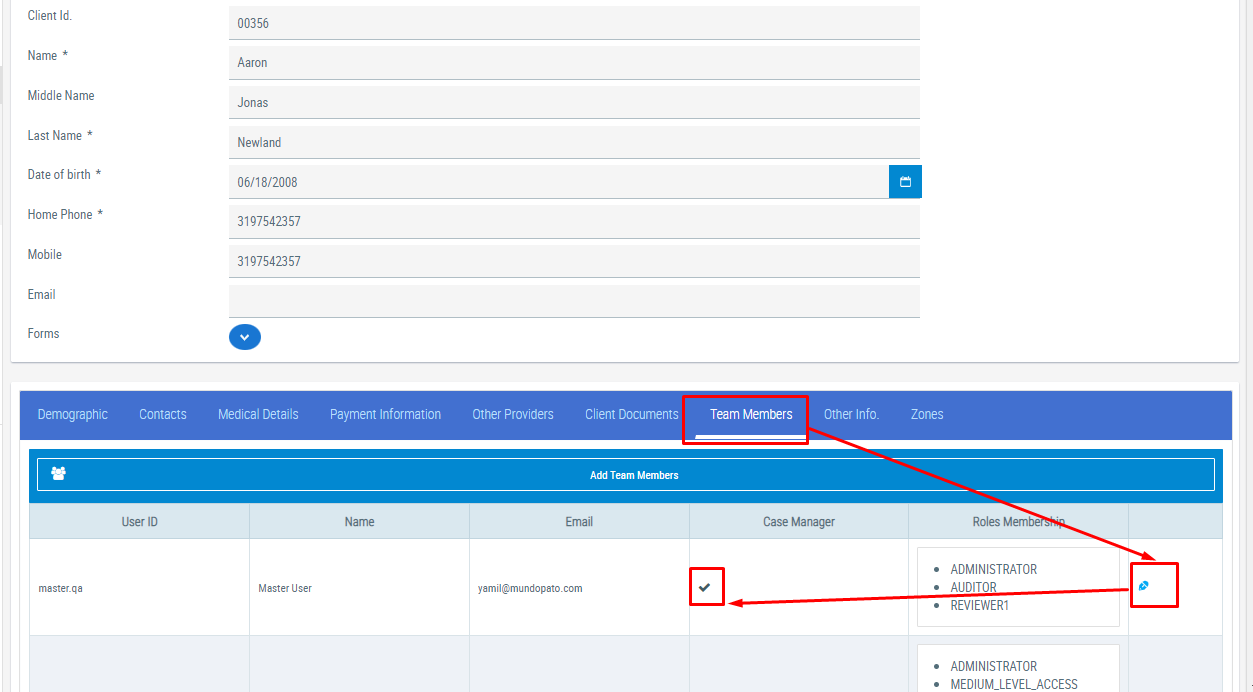
UnitusTI allows selecting one of the team members assigned to a client as the client's Case Manager.

The case manager is reported in the Progress report for treatment plans. Click here to view the documentation of the Progress Report

A client can have multiple Case Manager but the report will display only one of them.

To indicate that a user is the Case Manager of a Client, in the client profile in the table of Team Members users can click or tap the cell to toggle between Yes and No.


New fields for Skill Acquisition and Behavior Reduction Programs

Additional information can be added during the assignment of a program to clients. The fields were designed to be used for Skill Acquisition Goals and Behavior Reduction Goals Programs. User have more flexibility and can add information specific for a client and the program.

The new open fields are the following, users can use it with any program and they will be reported in the Progress Report.Click here to view the documentation of the Progress Report

  • Antecedent and Consequence Analysis,

  • Precursor Behavior

  • Triggers

  • Functions

  • Present Level

  • Goal Mastery Date

  • Treatment Plan

  • Reactive and Proactive Strategies

  • Prompt Procedures

The screenshot below displays where you can add these fields to a client program assignment.


New Input Forms are available

A new feature called “Input Forms” was added to UnitusTI. The Input Forms offer the ability to manage client information in a more flexible way, with additional advantages like multiple records and historic tracking.

By clicking on the name of an Input Form you can manage a list of records of the same topic. 

The list may serve as a historical record (for example, by filling a new Diagnosis input form each time there is a new diagnosis of the Client) or can be used to maintain multiple related records (for example, a Client with many Doctors may have multiple “Doctors” Input Forms active at the same time).

  • Medications Input Form

  • Doctors Input Form

  • Diagnosis Input Form

  • Insurance Payer List Input Form

  • Treatment History

  • Other Services Providers

  • Background Information

  • Treatment Plan Builder


Client Payment Information and Medical Details will be migrated to Input Forms

The migration will be completed by Thursday 2/10/2020 at 5 am PST.

The Input Forms replace the Payment Information and the Medical Details in the Client Information, and it means that for existing Clients the information will be migrated automatically from the Information Tabs to the new Input Forms. Click here to see the details of the data migrated to the new Input Forms.


Update in the spreadsheets used in the One-Time-Data Sync and the Recurrent Upload

The enhancements in the client information also updated the spreadsheets used for data syncing. The format is the same but the fields in the sections for Payment Information and Medical detail will no longer update the Client Information. Click here to go the documentation and download the new templates (Password: UnitusTI-RU)


Have questions or issues to report? Our friendly Support team is standing by! Use the support ticket feature in UnitusTI or the blue “Support” button at the bottom of this page.

UnitusTI Update Version 7.12

UNITUSTI UPDATE VERSION 7.12 (MARIA EDITION)

HERE ARE THE LATEST AND GREATEST ADDITIONS TO UNITUSTI!


Assessments Scoring Dashboard

Updates to the Assessment Scoring Dashboard


New name: Assessments Administrative Dashboard

The Assessment Scoring dashboard has gotten some updates including a new name to more accurately reflect its scope and purpose.

- Tabs system: Tabs were added to the assessment dashboard for easy navigation and user experience

- Filter by School: (optional) School districts who utilize the “School” field in the Other Providers tab in the Client profile (location: My Clients), now can filter the clients by school.

- Export tables to Excel and CSV. All tables available in the dashboard can be exported to excel. You can manipulate further the raw data in an excel editor.


New: Virtual Materials Dashboard

A new Dashboard is available to view summary reports for your VM remote sessions! Click here to learn more

Virtual Materials Dashboard

Explore saved VM session summaries for all of the clients associated with your account. Go to “Dashboards” in the main menu menu and click on “Virtual Materials Dashboard”.

Note: this action will close the Virtual Materials Toolset

Unitusti update version 7.10 (maria edition)

HERE ARE THE LATEST AND GREATEST ADDITIONS TO UNITUSTI!


Updates in Assessments:


Short Text Assessment Response

There is a new response type in Assessments: Short Text. Found under the Open Field option, short text will help you to save space in your assessment, with a maximum of 200 characters (vs. the long text option, which has up to 2000 characters). You can add this new response type while creating or editing a new question in an assessment template (hint: assessment templates are created in the Assessment List).

Users with role Administrator, High-Level Access, and Assessment Manager can create or update Assessments in UnitusTI.


Updates in Programs:

mastery notes.png

Mastery Notes is available for all DATs

Adding the Mastery Notes allows you to add details for the mastery criteria. This information is available in the Parameters tab when you run a program. In future updates will be added to the Information Filter report.

Navigate to Programs in the Main Menu, select Manage Programs, add a program to a program list and in the Data Collection tab, the new field is available. Users with role Administrator, Teacher and High Level Access can assign programs.


excel.png

Updates in the Session Notes Dashboard

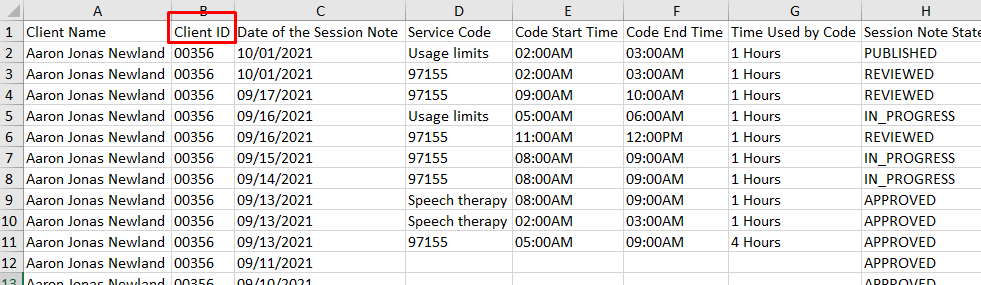
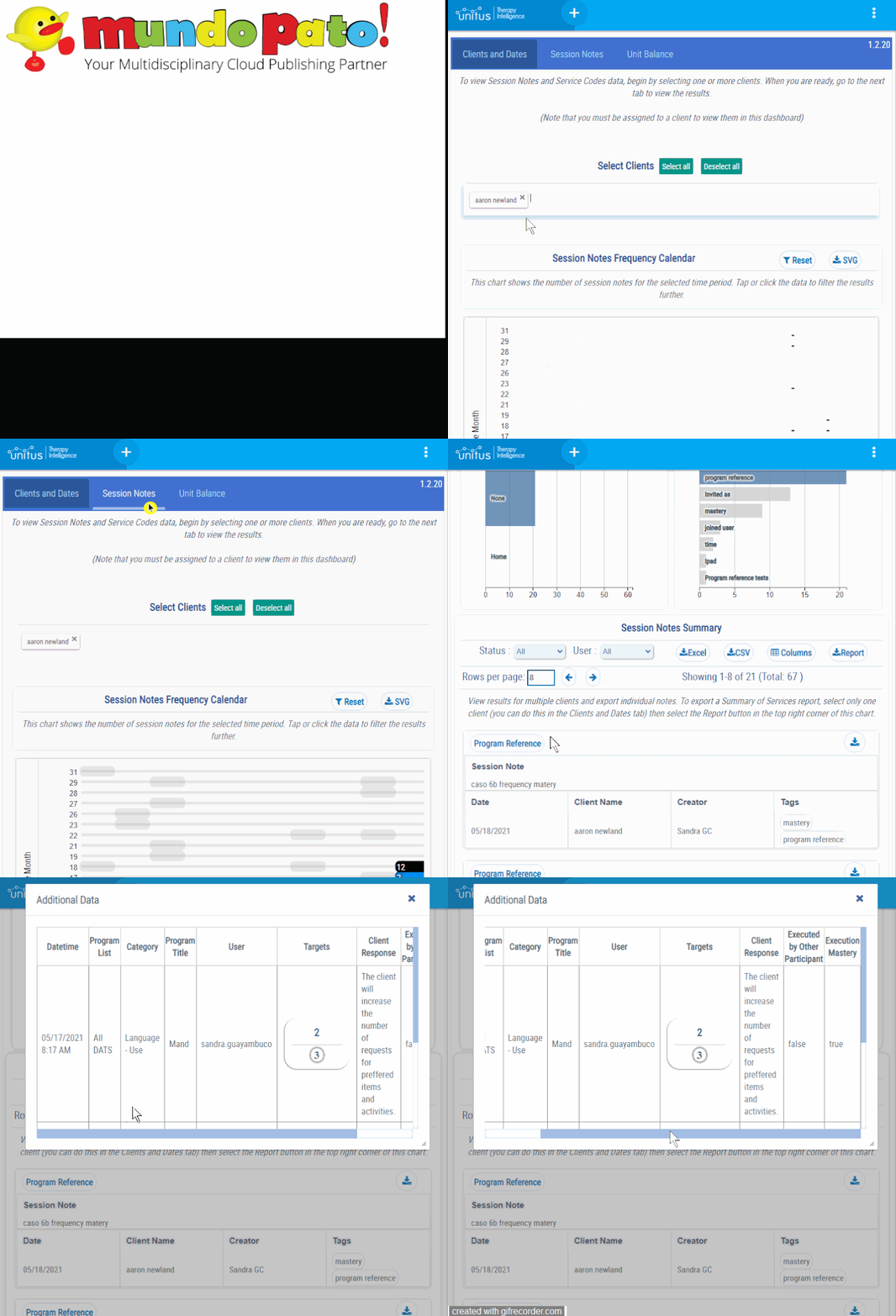
Users can add the clientID to the Excel and CSV reports of the Summary of Session Notes in the Session Notes dashboard

Navigate to Dashboards in the Main Menu, select the Session Notes dashboard, select the clients and the dates that you want to report, go to the second tab and search for the Summary of Session Notes table. Select “Columns” to choose what information include in the report. Click/tap in the “Excel” button to export the report.


client_email.png

Email in the Client Information Page

You can now store a primary email address in a client’s profile in the client’s information screen. Users with role Administrator, Teacher, High Level, Medium Level and Client Guardian can navigate to Center/My Clients in the main menu, to create or update clients.


program library.png

Merge all the new updates of your program subscription

Merge all the updates available for your program subscription. Authors are constantly adding new programs and updates, stay up-to-date by merging the updates in the Program Library highlighted in the next screenshot. Users with a security role of Administrator, High Level, and Curriculum Manager can navigate to Programs/Program Templates in the main menu, and select the blue Program Library button at the top of the page to check and add updates to your subscription program content.


Have questions or issues to report? Our friendly Support team is standing by! Use the support ticket feature in UnitusTI or the blue “Support” button at the bottom of this page.

UnitusTI Update version 7.9 (Maria Edition)

Back to Updates List

Back to Support Zone

HERE ARE THE LATEST AND GREATEST ADDITIONS TO UNITUSTI!


Session Notes updates

  1. The “Health check” field in session notes has been split into two new fields: “Medication Notes” and “Health Notes”

    The session notes Health Check field is now two brand new fields: Medication Notes and Health Notes, to allow you to record even more detailed information for your client sessions. These fields can be added to your notes from the “Fields” dropdown menu, or add them to a permanent template in Center/Center Information/Account Setup/Session Notes Template.

Health_check.png

2. Alert for Unsaved Session Note

A new popup message will alert you to "Confirm you want to leave this page" if you try to exit a session note that has unsaved information. This feature will be helpful in preventing lost information. Note that we encourage you to save your session note frequently and most importantly before leaving or sleeping your device, as UnitusTI security features will automatically log you out after 14 minutes of inactivity.


Assessment Updates

  1. “Sections” Visibility Changed

    While running an assessment (Run/Run Assessment), you may notice that the Sections menu (an optional component of an assessment) is no longer located on the left side of the screen. The Sections menu has been updated to open as a menu on the right side of the screen when you select the “Sections” button, which is found in the top right corner of the assessment screen. When running assessments, you will see a change in the Assessment execution Screen, Sections are no longer placed at the left, but a new button Sections at the top right corner will show the sections and subsections available in the Assessment. The screenshot below display the change, how it looked before and how it looks like now.

Old layout: Sections are listed in the menu visible on the left side of the screen | New layout: Sections are found under the “Sections” button in the top right corner of the screen

New Assessment Dashboard

The new Assessment Dashboard will be available for all accounts in the main menu (Main menu/Dashboard)

The Assessment Dashboard is a comprehensive reporting tool for viewing and exporting assessment results. The Assessment tool (used for creating and running assessments with your clients) and the Assessment Dashboard are available by default in all UnitusTI accounts.

See the ASSESSMENT DASHBOARD GUIDE to get started.

Assessment_dashboard.png


Have questions or issues to report? Our friendly Support team is standing by! Use the support ticket feature in UnitusTI or the blue “Support” button at the bottom of this page.

UnitusTI Update Version 7.8 (Maria Edition)

Here are the latest and greatest additions to UnitusTI!

Gender and Demographic Information Updates in Client and User Profiles


As part of our ongoing commitment to diversity and inclusion in UnitusTI, we are pleased to announce the following updates.

A new tab called “Demographic” has been added to user and client profiles (found, respectively in the User List and My Clients). In this tab, gender selection and address fields have been moved and additional fields have been added, as follows:

  • Gender: Choose from three options, including a custom label and neutral pronouns. This is a required field in the client profile, optional in the user profile.

  • Nationality: (optional field) choose one or more by typing in (typing triggers a list of options to choose from)

  • Language: (optional field) choose one or more by typing in (typing triggers a list of options to choose from)

  • Race and Ethnicity: (optional field) click or tap the field to choose one or more options from the dropdown list

View a short video demonstration below:


Have questions or issues to report? Our friendly Support team is standing by! Use the support ticket feature in UnitusTI or the blue “Support” button at the bottom of this page.


UnitusTI Update Version 7.7 (Maria Edition)

Here are the latest and greatest additions to UnitusTI!


Invite users to your session note as Supervisors or any custom role

Adds additional team members (users who are also assigned to this client) to the session note. Joined users can add their session notes, service codes, and signature from their own UnitusTI account. Joined users can be invited as Supervisors, Supervisees, or any custom role.. Click here for more information.

add new joined user.gif

Invite team members to your session notes

Adding other users with whom you share an assigned client allows them to add comments to the note and add a signature if required. While creating a new session note or editing a draft, follow these steps:

1. In the Fields dropdown, check Add Users to join to enable that field.

2.Select the button select with a magnifying glass icon

3. Search the list and check the boxes for the team members you wish to invite

4. Click or tap the blue “Select” button to save your selection and accept the confirmation message

5. Select the “Update Note” button in the top right corner of the screen.

The selected users have now joined the session note and can add their comments to the note any time before it’s published (notes are published once “Finish Note” has been selected).

 
invited as.gif

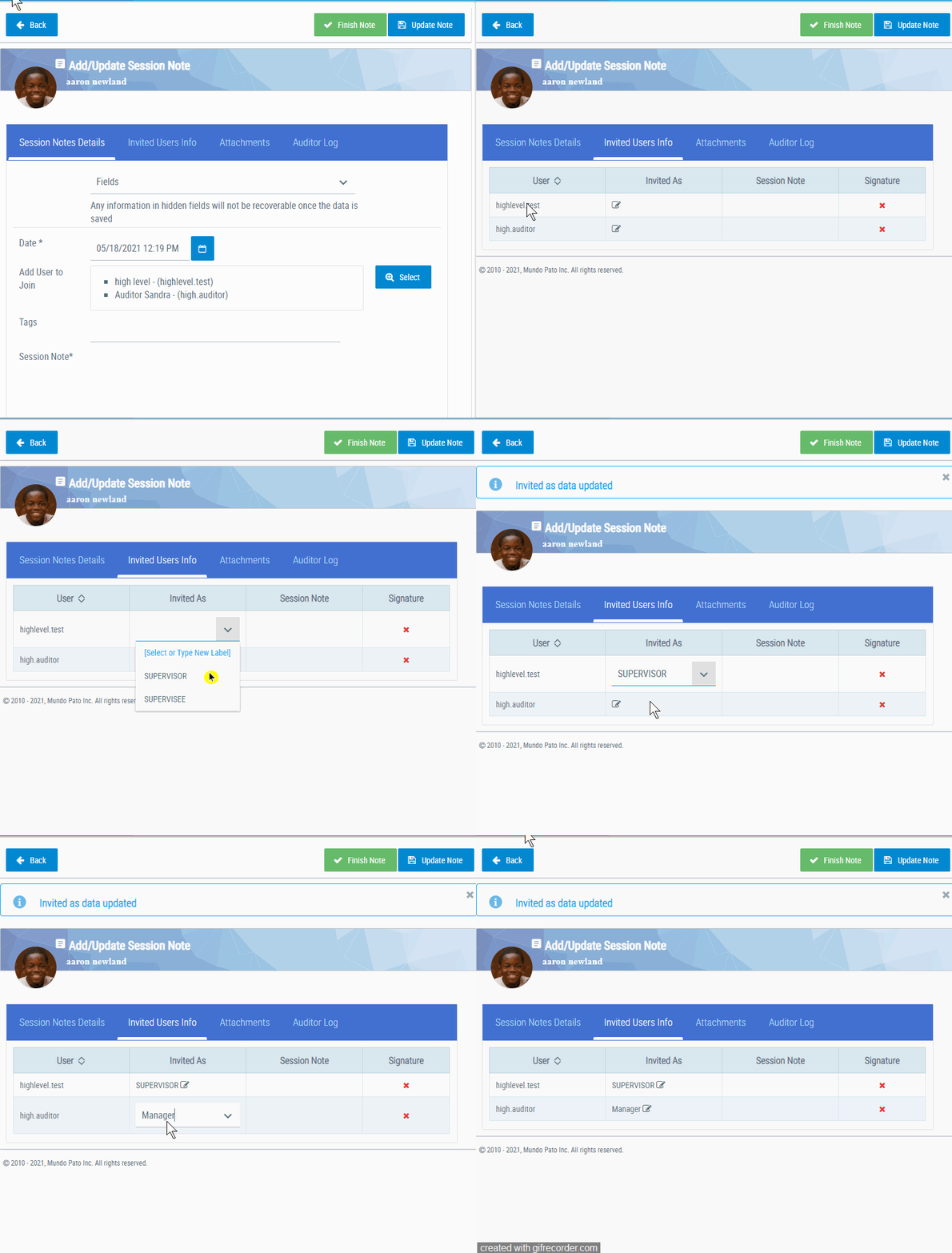
Invited Users Info tab

The gif on the left shows a short demo of how to give your team members a custom role.

1. After the note creator has invited the team members and they are listed in the “Add Users to Join” field, navigate to the “Invited Users Info” tab

3. In the column “Invited As”, users can select or type the role for each invited user

4. In the same table, users can view the session note of each invited users and if they signed their note.


Report your session note program references

The program reference can be viewed In the dashboard and reported in .pdf or .docx format (click here for more information)

program reference.gif

View and Export Program Reference Data

1.Navigate to the Session Notes Dashboard

2. In the “Clients and Dates” tab, users can filter by clients and by dates

3. In the Session Notes tab, users view all the session notes information

4.Each Session Note has a “Program Reference” button that opens a pop-up displaying the program reference Information in a table format

5.In the Session Notes Dashboard, next to each session note there is a button to download each session note. A form opens up, where users can select which information include in the session note


Have questions or issues to report? Our friendly Support team is standing by! Use the support ticket feature in UnitusTI or the blue “Support” button at the bottom of this page.

UnitusTI Update Version 7.6 (Maria Edition)

Here are the latest and greatest additions to UnitusTI!

Session Note Template.

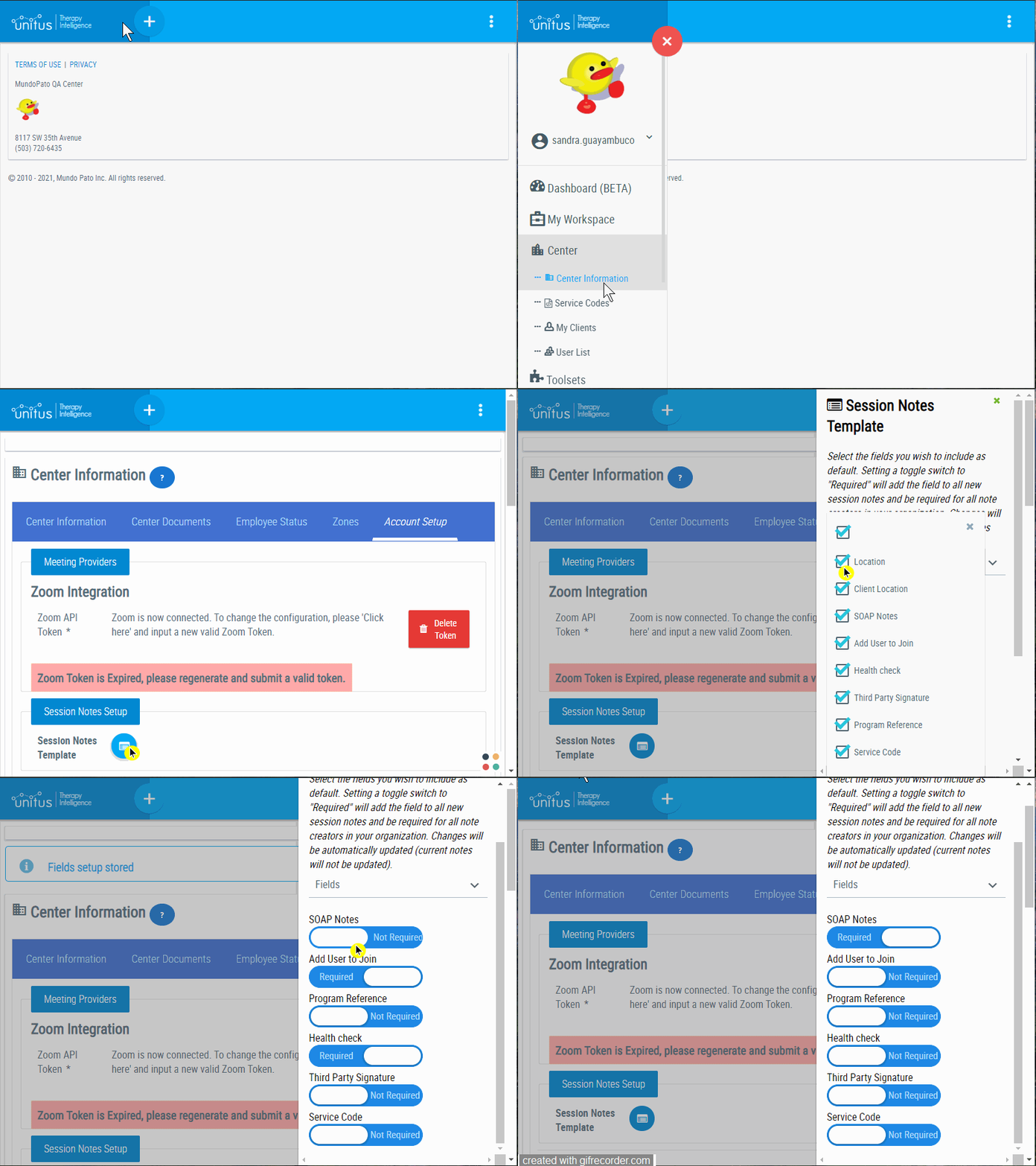
Only administrator users can edit the session notes template. You can select the fields you wish to include as default, mandatory fields in all session notes. Setting a toggle switch to "Required" will add the field to all new session notes and be required for all note creators in your organization. Changes will be automatically updated (current notes will not be updated). Click here for more information.

Program Reference

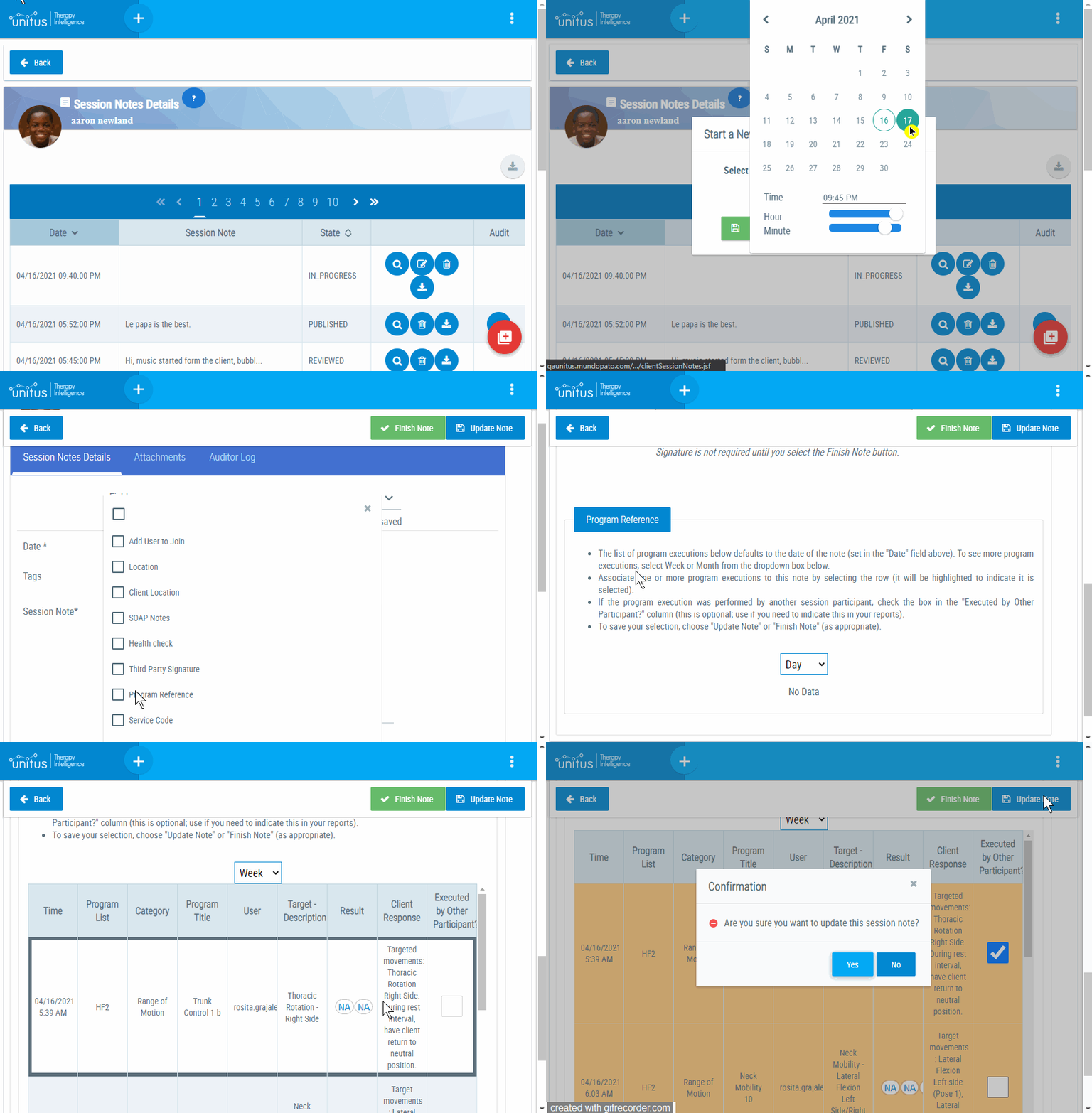
Reference program executions to your Session Notes. This new section allows you to link existing Program Executions to the current Session Note. It lets you search for Program Executions on the last day, week or month, by counting back the number of days from the current date. Click here for more information.

session not_progam reference2.gif

Link Multiple credentials to the service codes.

Users can now link a user credential or all credentials to the service code by adding a service code.

QA.png

Have questions or issues to report? Our friendly Support team is standing by! Use the support ticket feature in UnitusTI or with the blue “Support” button at the bottom of this page.
UnitusTI Update Version 7.5 (Maria Edition)

Here are the latest and greatest additions to UnitusTI!


Session Notes New Features

Audit Module

Session notes can now be reviewed and audited by designated users other than the creator. The Audit Module is a new feature that enriches the level of control over Session Notes, allowing users enabled with the Reviewer or Auditor security roles (these are new!), to read, annotate, update, reject and approve Session Notes.  Learn more...

New Session Notes Fields

We’ve added two new optional fields in the session notes for the session notes users: Medication notes and Health notes. To add a field to a note, select the “Fields” dropdown at the top of the note and check the box next to the field you wish to add. See screenshot below:


New Filters in the Session Notes Dashboard

  • You can filter now the Session Notes summary per its start and end time, and the duration of each session note. Click here to see the details

  • “None” is now included in the Location Filter to filter the session notes that do have empty Location

  • “None” is now included in the Code Filter to filter the session notes that do not have Service Codes


UnitusTI Update version 7.4 (MARIA EDITION)

UNITUSTI UPDATE VERSION 7.4 (MARIA EDITION)

Here are the latest and greatest additions to UnitusTI!


UI Enhancements

  1. Supplemental Information is now available as soon as you create a new program. The application requires that you save the new template for the first time to attach documents in the supplemental Information area

enhancements1.png

2. Center Clients has a new name! “Center Clients” is now called “My Clients” to reflect better how this area is used. The My Clients area of UnitusTI allows users to view the clients assigned to them and create new clients. Access to the My Clients area is available to the following user security roles: Administrator, Teacher High Level, Medium Level, Low Level, View Only, Execute Only, Client/Guardian, VM Administrator, VM User, VM Parent (with some restrictions, please view the security roles guide for specific permissions.)

enhancements2.png


Security updates

  1. Enhancements to the Encryption and Transport Layer Security. The application has increased the Rigor of the Service's SSL Configuration.

  2. The Application Uses Strict Transport Security Headers in all the webpages used by UnitusTI to improve the defense against cookie hijacking and protocol downgrade attacks.

  3. By doing these security upgrades, UnitusTI no longer supports the following combinations of the browser and Operating System (OS)


Browser

OS

IE 11

Win 7  R

IE 11

Win 8.1  R

IE 11

Win Phone 8.1  R

IE 11

Win Phone 8.1 Update  R

Safari 6

iOS 6.0.1

Safari 7

iOS 7.1  R

Safari 7

OS X 10.9  R

Safari 8

iOS 8.4  R

Safari 8

OS X 10.10  R


Session Notes Dashboard Updates

The Session Notes Summary table has changed in the Session Notes Dashboard. Now you will be able to see under each session note the related service code details and the session note details. See below for a closer look at each.


Session Notes Details


dash_SSn1.png


  • Session Note: The session note written by the creator of the session note

  • Client Name: The client of the session note

  • Creator: User name that created the session note

  • Date: Date saved in the session note

  • Tags: Tags added to the session note


Service Code Details

dash_SSn.png

  • Service Code: Service code associated with the session note.

  • Service Code Name: Name of the service code added to the session note.

  • User: First and last name of user who added the service code.

  • Invited User Note: The note of the invited user. If the session note creator invited a user to collaborate with the session note, the table would display the user’s information in that row. If the session note creator did not invite any user to the session note, this space would be blank.

  • Code Start Time: The service code owner records the start time of the service code in the session note. It only applies to time-based service codes.

  • Code End Time: The end time recorded by the owner of the service code. It only applies to time-based service codes.

  • Time Used by Code: The total time used by the service code. It only applies to time-based service codes.

  • Units Used by Code: The units of the service codes used in this session note. For example, if the service code’s unit value is 15 minutes, and the total time recorded was one hour, then the units used by the code are four units.

  • Unit Value: The service code’s creator defines each service code’s unit value. For example, if a service code unit is 15 minutes, 15 minutes is the unit value.

  • Value: The number recorded by the user in the session note; for example, the number of kilometers that the client traveled to run the session therapy. It only applies to distance-based service codes.

  • Unit Type: This field describes the unit type of the service code. It can be the time in minutes, distance in km, or distance in miles.

  • Other details: Here goes the additional comments that the user adds to each service code 

  • Signed by: User name that signed this service code and session note

  • Color Code: The color given to this service code. The service code creator sets it up.

Export session notes report

Search for these icons in the Session Notes Dashboard on the header of each chart to download the data in the format you desire:

  • To download to Excel or CSV. 

exp.png
  • To download to Word or PDF

exp2.png
exp3.png


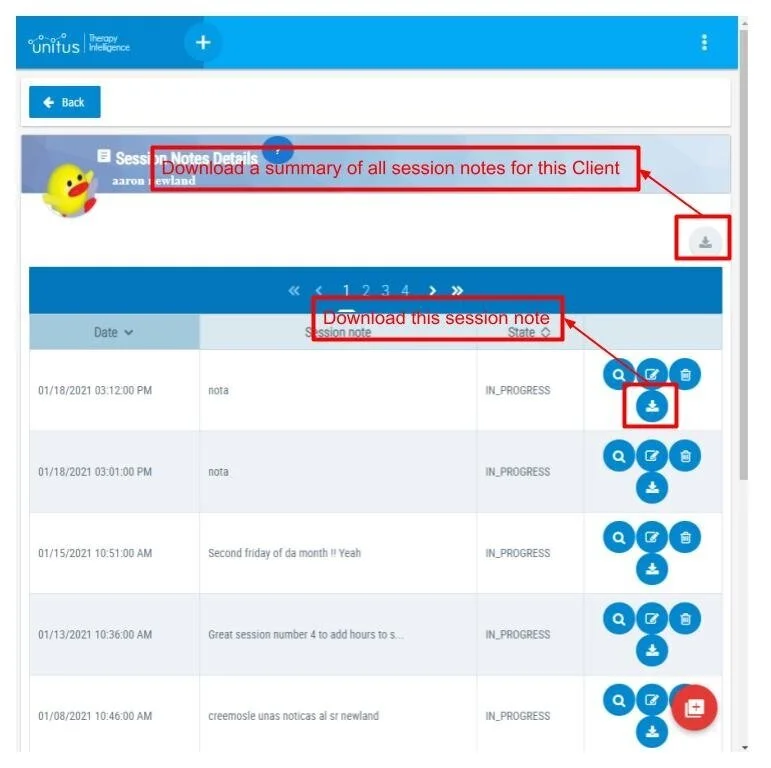
In the Session Notes details, there are two new buttons to download PDF or Word reports. Select the gray icon at the top right corner to download a summary of all session notes for that client, and select the download button in the row of the session note to download a report for that single note.

Updates+Feb+27+%282%29.jpg
dash1.png

When you select it, wait a moment while the application redirects you to the dashboard, the next screen will show you a list of information that you can add to the report, check/uncheck the fields that meet your report needs. Then select “Export pdf Report” or “Export Docx report”.

 
dash2.png

To go back to the list of Session Notes details, select the “Back to Session Note” blue wide button 


Have questions or issues to report? Our friendly Support team is standing by! Use the support ticket feature in UnitusTI or with the blue “Support” button at the bottom of this page.
UnitusTI Virtual Teaching Materials Update - version 2

New Features and Functionality Have Been Added to the Virtual Teaching Materials (VTM) in UnitusTI

This update is for the Virtual Teaching Materials (VTM) content, which is available by subscription from the UnitusTI Marketplace.


Have questions or issues to report? Our friendly Support team is standing by! Use the support ticket feature in UnitusTI or with the blue “Support” button at the bottom of this page.
UnitusTI Update version 7.1 (Maria Edition)

Here are the latest and greatest additions to UnitusTI!


Updated Session Notes Functionality:

click to see larger image

  • View all session notes from the Session Notes Details page. Back by popular demand, the ability to view all session notes for your assigned clients right on the Session Notes Details page has been restored to the security roles that could previously view this information:

  • Signature in the session note is not required until you select the Finish Note button. Go ahead and save your progress without adding a signature until you are ready to publish the note.

Security Role Updates:


Just For Our Virtual Teaching Materials (VTM-only) Accounts:

  • We’ve added the “Clock In/Out” feature to VTM-only accounts! This handy tool lets your users designate when they “clock in” to work and when they “clock out”. Watch a short walkthrough of this feature here: https://youtu.be/vmDUdbSAbtA. (For a list of security roles with access to this area, please visit this page.)

  • VTM-only accounts now can view user log in/out statistics in the Sign in/Sign out Records report, found in the Reports & Tracking menu area. Watch a short demonstration of how to use this report here: https://youtu.be/HM-LY6hzxac. (For a list of security roles with access to this area, please visit this page.)


Have questions or issues to report? Our friendly Support team is standing by! Use the support ticket feature in UnitusTI or with the blue “Support” button at the bottom of this page.
UnitusTI Notice of Server Downtime: Health & Wellness platform November 5th, 2020 at 8 am PST/11 am EST

On November 5th, 2020 at 8 am PST/11 am EST, the UnitusTI - Health and Wellness platform in the United States encountered an issue that affected day to day operations with all devices. Our quality assurance team was notified of the issue and they were able to identify the issue within half an hour. It was an issue with the application server.  Quality Assurance executed a corrective measure that will prevent the issue from recurring, and a system restart was required. As always we have zero tolerance for issues that affect real-time operations and will continue to work towards maintaining uptime. Our current uptime: 99%

 
UnitusTI Update version 7.0 (Maria Edition): Service Codes & Session Notes

Here are the latest and greatest additions to UnitusTI!


Service Codes and Session Notes have gotten some new features and functionality in UnitusTI

For step-by-step instructions on using the new Service Codes and Session Notes features, click here.

Service Codes

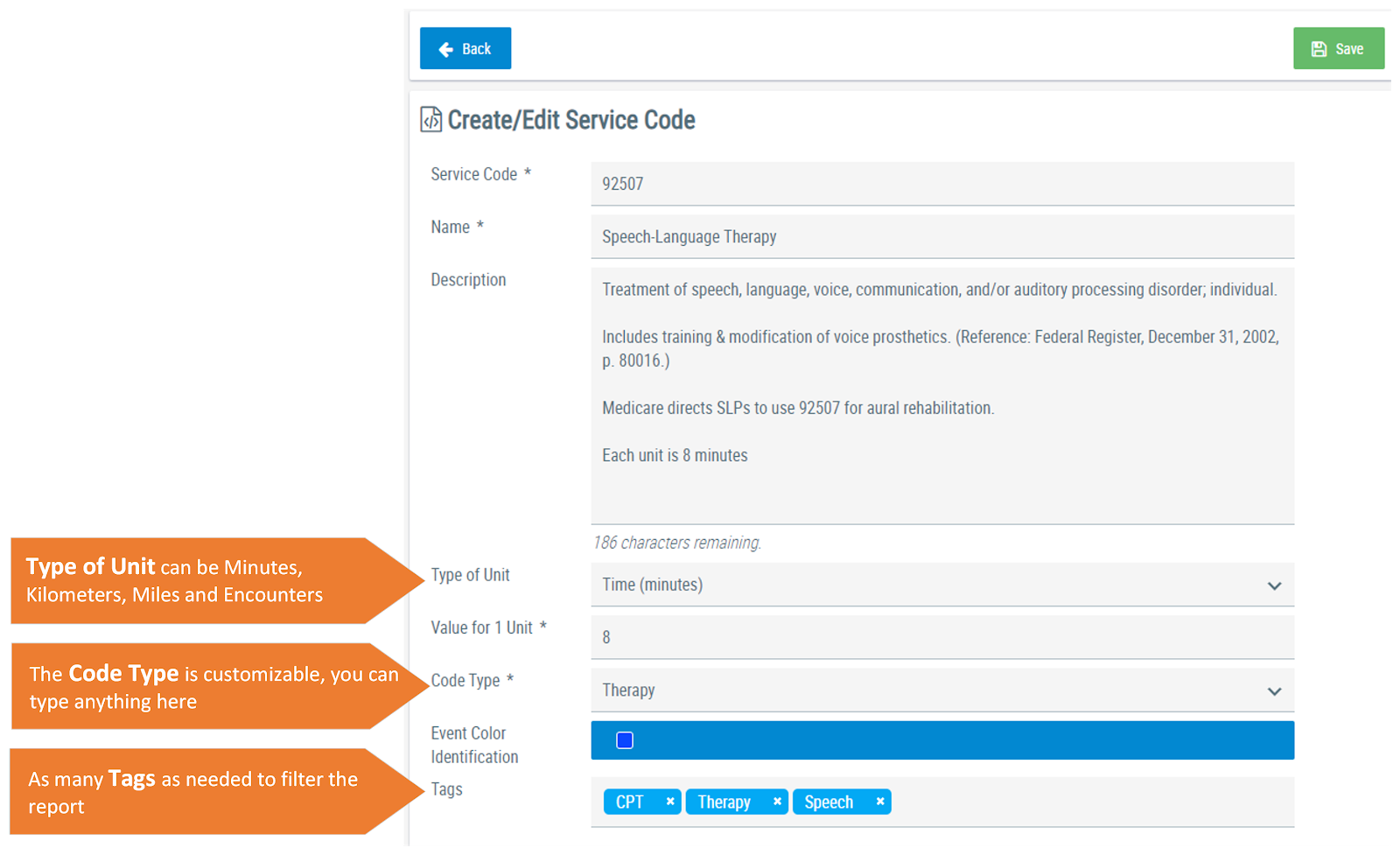
Service Codes have moved from the Center Information area to a brand new module right in the main menu.  Service codes have been enhanced to include the ability to create service codes, assign unit values (with allowed caps), and assign them to session notes to track usage.  Additional functionality includes the ability to assign unit caps and track and report on the usage by client and user. 

  • Assign unit values to service codes based on time (minutes), encounters (sessions) or distance (miles/kilometers)

  • Track allowed caps by client or user and by validity period

  • Create customized reports for insurance and regulatory agencies

Create Service Code.png
 

Session Notes

Session Notes now are available from an additional area: Manage Programs. Select your client to visit their Program List Detail Page and access session notes from the familiar icon at the top right side of the page.

Session notes have added the following functionality:

  • Assign service codes

  • Record start/end time for each service code in the session notes

  • Add SOAP notes

  • Set location and address for each session note

  • Attach multiple files

  • Multiple signatures

  • Third party signature verification

  • Create tags for enhanced search functionality

session note 1.png
session note 2.png
 

The new service code functionality is now tracked using session notes. The diagram below demonstrates the lifecycle of service codes and session notes in UnitusTI:

diagram.png

Reporting and Exporting for Session Notes and Service Codes

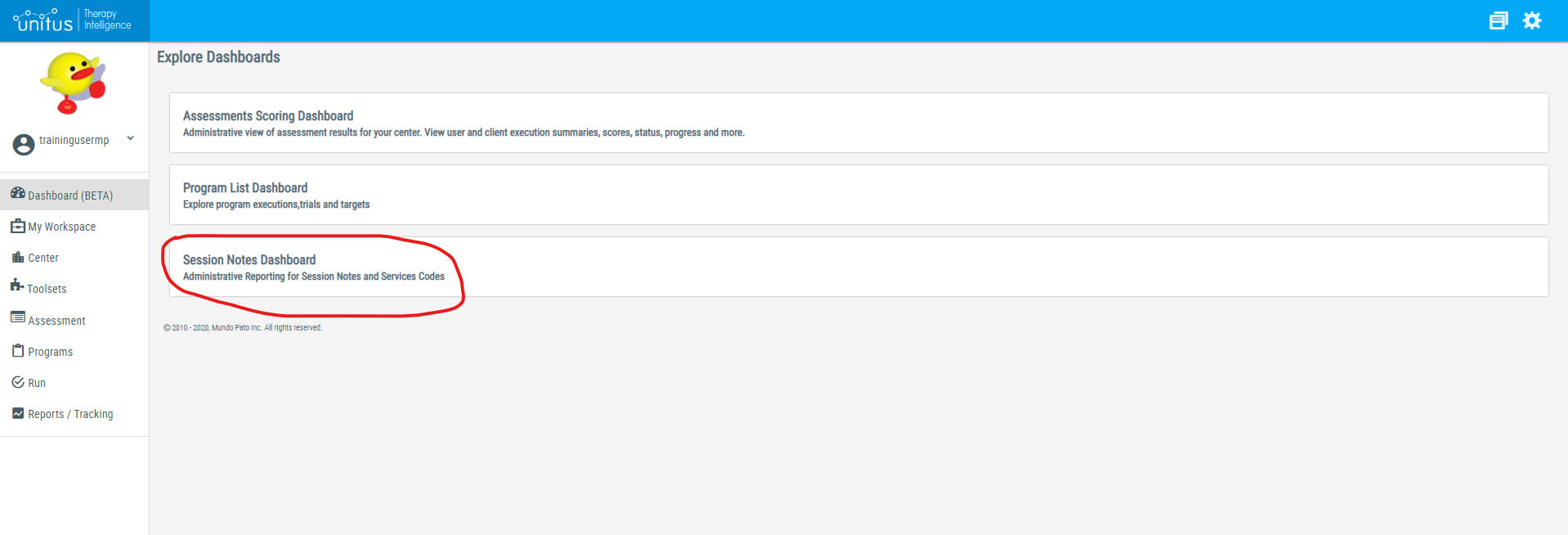
The ability to export, tracking and report on session notes and service codes is now available in a brand new dashboard reporting tool. You can find this dashboard by navigating to “Dashboard (BETA)” in the main menu and then choose the “Session Notes Dashboard” (see screenshot below).  We have outlined how to utilize this reporting tool in this guide

session notes dashboard 1.png
 

Additional notes:

  • The ability to view session notes has changed slightly: users can view their own session notes from the Center Clients, Manage Programs and Run Program areas (note that access to these areas will depend on their security role), however to see notes from other users, you will need to access the Session Notes dashboard reporting tool. The security roles that have access to the Session Notes dashboard area are: Administrator, High Level, Medium Level, Session Notes Editor (and for VTM-only accounts: Session Notes Editor, VM Administrator and VM Manager).

  • Service codes may still be assigned to calendar events and tracked through the Session Tracking Report, if you prefer to continue using this method. However, these areas will not track unit value usage with client and users. To use the enhanced functionality described above, you will need to use Service Codes from the new menu area and assign them to session notes.

  • Service codes that you created prior to this update are still in your account. All existing service codes will be available from the Service Codes menu area and prior session notes will be in the Session Notes list for your clients.

For step-by-step instructions on using the new Service Codes and Session Notes features, click here.


New Security Roles

Security roles have changed a bit as a result of this enhancement. Please read below for more information. Adding the new role(s) to users can be done by a user with the Administrator, VM Administrator or User Manager role. 

For Session Notes:

The ability to view session notes has been removed from the “Client/Guardian” and “VM Parent” security roles due to security concerns. We have added a brand new security role to alleviate this:

(Note that access to these areas may be further modified by any other security roles assigned.)

  • “Session Note Editor” security role has access to the following:

    • My Account

    • Session Notes dashboard report areas: Client and Dates; Session Notes

    • Session Notes: create, update and view their own notes (only administrator roles can delete notes)

You can view all security roles, including these new roles, in the online guide found here. (VTM-only accounts, please go here.)


For Service Codes:

Additional security roles have been added for Service Code usage (note that these roles do not apply to VTM-only accounts):

  • “View Service Codes” security role has access to the following:

    • My Account

    • View list of codes

    • View assignations by client and user

  • “Service Codes Editor” security role has access to the following:

    • My Account

    • Session Notes dashboard report areas: Client and Dates; Unit Balance

    • Service Codes menu area: Create, update, remove service codes. Create and update assignments by client and users using the “Assign By Client” and “Assign By User” options in this area.

(Note that access to the above areas may be further modified by any other security roles assigned.)

You can view all security roles, including these new roles, in the online guide found here. (VTM-only accounts, please go here.)


Other Updates

  • The “Create Programs” menu area has been renamed to “Programs”. Functionality for this area has not changed, but the new name will better reflect that this area is so much more than just creating programs!


Have questions or issues to report? Our friendly Support team is standing by! Use the support ticket feature in UnitusTI or with the blue “Support” button at the bottom of this page.
Updates Are Headed Your Way!

We wanted to give you a heads up that some changes are coming to your account.  Stay tuned for official update confirmations coming soon!

We've got some great news!  In the next few days, you will see some changes to your account in the following areas: Session Notes Service Codes Read on for a quick overview of what to expect with these updates.


Service Codes: New Features & Functionality

  • New location in the menu!  Service Codes will be moving directly into the main menu under "Center" for easier access. (see screenshot above)

  • Manage advanced service code tracking (including caps and assigned usage) via Session Notes

  • Assign caps to multiple clients at once to track number of hours assigned and used

  • Assign caps to multiple users at once to track number of hours assigned and used

  • View running balance for assigned caps per recorded events via session notes, including totals for caps assigned, used and available

  • Service codes will no longer need to be tracked via calendar events

Session Notes: New Features & Functionality

  • In addition to Center Clients and Run Program, you will be able to access session notes from an additional location: Manage Programs

  • Record start/end time for each service code in the session notes

  • SOAP notes

  • Set location and address for each session note

  • Attach multiple files

  • Add multiple signatures

  • Create tags for enhanced search functionality

New Reporting:

Session Notes and Service Codes reporting will be moving to a brand new Dashboard for customized reporting to help you comply with your insurance and regulatory requirements:

  • Export report to PDF, Word, and CSV for Excel

  • Unit usage of service codes balance per client and per user

  • Select the information you want to include in the report

  • Filter the session notes by Service Code, Client, User, Location, Tags, and Date


Have questions or issues to report? Our friendly Support team is standing by! Use the support ticket feature in UnitusTI or with the blue “Support” button at the bottom of this page.

September 29, 2020: Updates to the Virtual Materials Toolset

Below you will find a list of the most recent updates added to the Virtual Materials (VM) toolset.

Note: this update affects only subscribers to the Virtual Materials (VM) toolset


REMOTE SESSION UPDATES: In addition to adding major internal enhancements in order to assist educators to more easily connect with students, the Mundo Pato Tech Team has also added some awesome new features. 

See below for a quick update then refer to Module I: Launch Session for more information!

When you log into VTM you will notice that the Remote Session icon now says Launch Session

This is because you now have options when launching a session with students. Preview the new session screen below. 


Local Session: This option has been added in order to allow educators and students to work on an activity together using the same device. The device replaces the printed materials, providing teachers and paraeducators with more ways to run lessons and eventually track data. 

For help with running a Local Session, click here

pasted image 0 (1).png

Remote Session: Now when you run a Remote Session, you are given the option to run a session using both audio and video, audio only, or neither. You are no longer required to have access to a video and microphone. Also, if you prefer to use another virtual meeting platform, such as Zoom or Google Meet, you are now able to use your video for that platform while running a remote session without video.

 
unnamed.png

Test Session: You are still able to run a remote test session and are also now able to run a local test session. Simply click on the box labeled “Run a Test Session”, select the type of test session you want to try, and click “Continue”. To learn more about running test sessions and why they are important, click here

 
pasted image 0 (2).png

Chat Feature: VTM users now have access to a chat box when running a remote session. Select “Chat” at the top of your remote session screen. 

For help with using the chat box feature, click here

Instant Connectivity Help: The Mundo Pato Tech Team has implemented a way for users to instantly adjust network settings in order to improve the connection for both the user and participant. This new feature is found when the remote session is launched. See the screenshot below. For step-by-step instructions, click here.  


SMART ORDER! This new feature allows you to create slides that will display each card in a deck before repeating. For example, let’s say you have created a slide for matching the letters A, B, and C. These letters have been organized into a deck and then anchored as the placeholder at the top. You then select each card A, B, and C to shuffle along the bottom. See below: 

pasted image 0 (3).png

If you select the A, B, C deck as your placeholder, you would need to pick “Random Card” in order to rotate between the 3 letters. If you do nothing else, those 3 letters will rotate completely at random. For example, B, C, B, B, C, A, A, A, C, B, etc. You are now able to select the box that says Smart Shuffle to ensure each card in the deck appears once before it is repeated. When the Smart Shuffle feature is selected, the order of your cards will still be randomized, but they will not repeat until all cards have been shown. For example, the first time through might be, B, A, C, the second time might be, A, C, B, and the third time might be, A, B, C, etc. 

You will find this feature below the anchor feature in the slide editor when a placeholder is selected. See below.

pasted image 0 (4).png

For step-by-step intructions on how apply Smart Order to the existing packs, click here.


HELP ICONS: Be on the lookout for help icons! Currently, you will find these symbols in the slide editor screen. Click on them to learn more about what each feature can do. 


Have questions or issues to report? Our friendly Support team is standing by! Use the support ticket feature in UnitusTI or with the blue “Support” button at the bottom of this page.


unitustisupport@mundopato.com
May 29, 2020: UnitusTI Updates (ver. 6.16)

Here are the latest and greatest additions to UnitusTI!


Zoom Update: Integrating Your Personal Zoom Account in UnitusTI

Where: My Account

The latest enhancement to using Zoom in UnitusTI now allows you to add your personal Zoom account.  Administrators now have the choice of integrating an organizational level Zoom account that will enable all users to add Zoom meetings to UnitusTI calendar events, or, allowing users to sync their own Zoom account to UnitusTI.  

Additional features:

  • Subject line of the event in UnitusTI will also be visible in your Zoom account

  • Waiting Room and manual approval is active for all Zoom video calls

    View the setup guide by clicking the button below:


Update to Program List Tabs in Manage Programs

Where: Create Programs/Manage Programs/Client’s Program List Detail page


You asked and we delivered! Now, when working in a Program List tab on the Program List Details page for your client in Manage Programs, you won’t lose your place when using the action icons to view the program history or edit targets and configuration details. UnitusTI will now bring you back to the same tab you were in when you navigate back to it from one of those areas.


Bulk Merge Program Template Updates (for Marketplace subscription content)

Where: Create Programs/Program Templates

Now, merging update from the authors of the Marketplace program package you’re subscribed to is easier than ever with the “Merge All Updates” button.

1. Navigate to Create Programs in the main menu and select “Program Templates”. Select the blue “Program Library” button at the top of the Program Templates page.


2. Program packages you are subscribed to are always at the top of the Program Library page. Select the button “Check for Updates”.


3. If there are available updates for the selected program package, you will see a list describing each update, as usual, with the option to view or merge in the Actions column. A “Merge All Updates” button has been added to this screen in the top right corner, allowing you to bulk merge updates at one time. Note that this action cannot be undone.


Other Fixes We Made:

  1. Fixed an issue where an Error Exception issue was triggered when trying to access My Account

  2. Fixed an issue where the Program List Report/Information Filter not displaying average results when selected for Duration programs


Have questions or issues to report? Our friendly Support team is standing by! Use the support ticket feature in UnitusTI or with the blue “Support” button at the bottom of this page.

May 8, 2020: UnitusTI Updates (ver. 6.15)

Here are the latest and greatest additions to UnitusTI!


Zoom Integration

Where: Center Information and Calendar

We are pleased to announce that the integration of the UnitusTI cloud with Zoom is now complete and you will be able to schedule appointments with your Zoom accounts on the UnitusTI cloud platform. We are thrilled to provide this functionality to assist you in providing remote care to your UnitusTI clients and students.

To get started:

  1. Step 1: Administrators should enable the link between the organization’s Zoom account in the new Center Information tab called “Meeting Providers”. Follow the instructions found here.

  2. Step 2: Set up calendar events for Zoom sessions


Refined Time-Based Data Collection with Milliseconds

Duration and Interval data collection types now allow you to choose milliseconds in your target times (see screenshot below):

Assessment lifecycle.png
 

Have questions or issues to report? Our friendly Support team is standing by! Use the support ticket feature in UnitusTI or with the blue “Support” button at the bottom of this page.